The Amount column looks completely normal. Every cell shows a number, right-aligned the way numbers usually are. Then SUM returns zero, AVERAGE fails, and a comparison formula that should flag values over a million returns FALSE for every single row.
Excel is not confused about appearance — it never calculates based on what a cell looks like. It calculates based on the underlying data type, and a cell that displays “4200000” can still be stored as a text string rather than a true number, especially when the data arrived through an import.
This post walks through the exact diagnostic sequence for confirming whether a number is genuinely numeric, fixes a realistic imported sales report where some figures convert easily and others do not, and explains why this keeps happening with imported data specifically.
What “Won’t Calculate” Actually Means
Excel distinguishes sharply between what a cell displays and what it actually contains. A cell can visually look exactly like a number while being stored internally as text, a mixed text-and-number string, or the text output of a formula. Once this happens, every arithmetic function — SUM, AVERAGE, comparison operators — either ignores the cell entirely or returns an error, with nothing in the cell’s appearance hinting at why.
Four Reasons This Happens
1. Excel distinguishes value from appearance
Calculation always operates on the underlying data type, never on what is visually displayed. A number formatted to look like currency, a percentage, or a plain integer is still a true number underneath. Text formatted to resemble a number is still text underneath, regardless of how convincing the display looks.
2. Imported data often arrives as text by default
Numbers frequently originate from CSV exports, ERP and accounting systems, or copy-paste from web pages and emails. These sources commonly wrap numeric values in text formatting during export, and Excel preserves that formatting faithfully without issuing any warning that the values are not true numbers.
3. Hidden characters break numeric conversion even when digits are correct
A cell may contain only digits visually, yet still include a leading space, a trailing space, a non-breaking space, or an invisible control character picked up during import. Any of these is enough to make Excel treat the entire cell as text, even though every visible character is a digit.
4. Some formulas return text by design, not by accident
Functions like TEXT, concatenation with the & operator, and certain conditional formulas always produce text output, even when the result looks like a number. Once a number passes through one of these functions, downstream calculations referencing that result stop working, despite the output appearing numeric on screen.
Diagnosing the Problem First
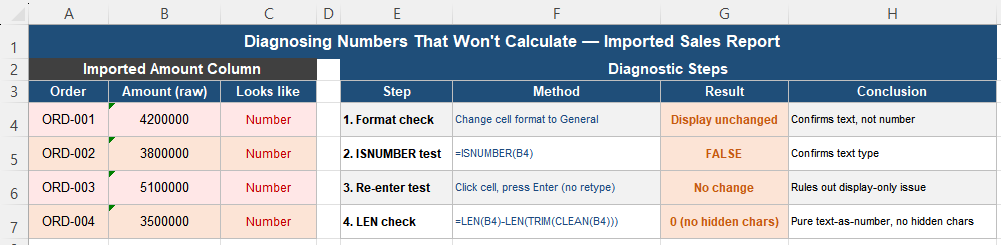
Before applying any fix, confirm exactly what Excel sees. Four checks establish this without guessing:
| Step | Method | What it confirms |
|---|---|---|
| Format check | Change the cell format to General | If the display does not change, the value is text, not a formatted number |
| ISNUMBER test | =ISNUMBER(A2) | FALSE confirms the cell is text; TRUE confirms it is a genuine number |
| Re-enter test | Click the cell and press Enter without retyping | If nothing changes, this rules out a simple display-only formatting issue |
| Hidden character check | =LEN(A2)-LEN(TRIM(CLEAN(A2))) | A result above zero confirms hidden characters are present in addition to the text-type issue |
Scenario: An Imported Sales Report
Consider a sales report imported from another system. The Amount column appears entirely numeric. Totals return zero, averages fail to calculate, and manually retyping a single cell “fixes” that one cell but not the rest of the column — a strong signal that this is a text-as-number problem rather than a calculation logic error.
Fixing It With VALUE and TRIM(CLEAN())
Step 1 — Try VALUE alone first:
=VALUE(A2)If this succeeds, the result becomes a true number, calculations begin working, and any desired display formatting can be reapplied afterward. If VALUE returns #VALUE!, hidden characters are very likely involved.
Step 2 — Combine with TRIM and CLEAN when VALUE alone fails:
=VALUE(TRIM(CLEAN(A2)))This removes extra spaces, non-printable characters, and common import artifacts before attempting the numeric conversion. For most imported datasets, this combination resolves the issue completely — even for rows where plain VALUE() failed outright.
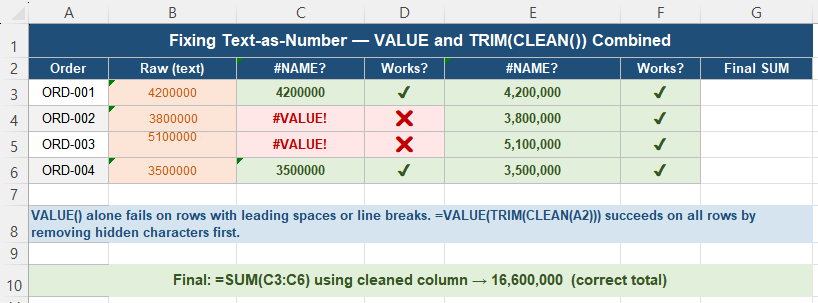
Step 3 — Replace formulas only after validation. Once the cleaned column calculates correctly, test totals and averages against expected values. Only after confirming the logic is correct should you consider replacing the original raw values — never overwrite imported data before validating the cleaning formula against it.
Sanity Check After the Fix
Confirm the fix worked with three independent checks:
- SUM test — should return the real total, not zero
- Sort test — should order numerically (1, 2, 10), not alphabetically (1, 10, 2)
- Comparison test — a formula like
=B2>1000000should return TRUE or FALSE correctly for each row, not FALSE across the board
If all three behave normally, the data has been successfully converted back to true numeric values.
Treat All Imported Numbers as Untrusted
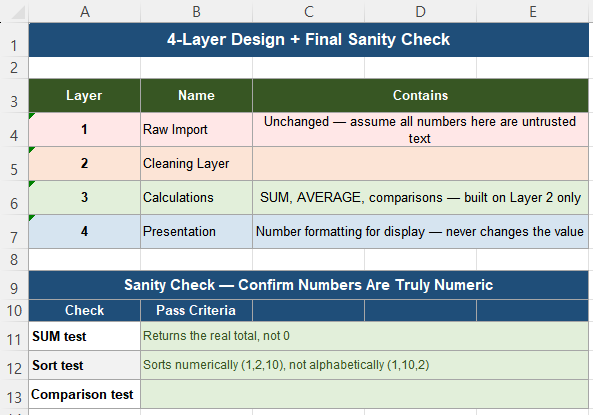
This problem is rarely a one-time mistake — it is usually a structural pattern tied to how data enters the workbook. A reliable structure follows four layers:
| Layer | Name | Contains |
|---|---|---|
| 1 | Raw Import | Unchanged — assume every number here is untrusted text until verified |
| 2 | Cleaning Layer | =VALUE(TRIM(CLEAN(A2))) — type normalization happens here, once |
| 3 | Calculations | SUM, AVERAGE, comparisons — built exclusively on Layer 2 results |
| 4 | Presentation | Number formatting for display — never changes the underlying value |
Two further principles reinforce this structure. First, never use formatting or the TEXT function to “fix” a number visually — formatting changes appearance only, while genuine conversion changes the underlying data type, and only the latter enables calculation. Second, avoid fixing numbers cell by cell: manual retyping does not scale, hides the root cause from anyone reviewing the sheet later, and fails again the next time new data is imported. For large datasets, convert numbers once in a helper column and reference that column everywhere else — this both improves performance and makes the workbook auditable months later.
Quick Checklist
- SUM returning 0 on a visually numeric column almost always means the values are stored as text
- Use =ISNUMBER(A2) to confirm the data type before attempting any fix
- Try =VALUE(A2) first; if it errors, hidden characters are likely involved
- =VALUE(TRIM(CLEAN(A2))) resolves the vast majority of imported-data conversion failures
- Verify the fix with three checks: SUM, sort order, and a comparison formula
- Never overwrite raw imported data until the cleaning formula has been validated
- Treat every number arriving from outside Excel as untrusted until confirmed
- Centralize conversion in one cleaning layer rather than fixing individual cells repeatedly
Frequently Asked Questions
Why does SUM return 0 even though the cells clearly show numbers?
SUM only adds true numeric values and silently ignores text, even text that displays digits identical to a number. This typically happens with imported data from CSV files, ERP systems, or copy-pasted content, where numbers are exported as text strings. Confirm this with =ISNUMBER(A2) — a result of FALSE confirms the cell is text, explaining why SUM returns 0.
Why does =VALUE(A2) sometimes fail to convert a number that looks correct?
VALUE fails when the cell contains hidden characters in addition to the visible digits — most commonly a leading space, trailing space, non-breaking space, or an invisible control character introduced during import. Combine VALUE with TRIM and CLEAN to remove these characters before conversion: =VALUE(TRIM(CLEAN(A2))). This combination succeeds in the large majority of real-world imported-data cases.
Why does retyping a cell manually fix it, but not the whole column?
When you manually retype a value and press Enter, Excel interprets your keystrokes as a fresh entry and stores it as a true number, overwriting whatever text-type value was there before. This only affects the single cell you retyped — every other cell in the column retains its original text-stored value. This is exactly why manual cell-by-cell fixes do not scale and why a formula-based fix applied to the whole column is the correct long-term solution.
Is changing the cell format to Number enough to fix text-as-number values?
No. Changing the cell format only changes how a value is displayed — it does not change the underlying data type. A text string formatted as Number will still fail in SUM, AVERAGE, and comparison formulas, because the conversion never actually happened. Use a formula like =VALUE(TRIM(CLEAN(A2))) to genuinely convert the value to a true number, which is what actually enables calculation.
How do I prevent this problem the next time I import data?
Treat every number arriving from an external source as untrusted by default. Build a dedicated cleaning column immediately after import using =VALUE(TRIM(CLEAN(A2))), and reference that cleaned column in every calculation rather than the raw import column. This way, even if future imports introduce the same text-as-number or hidden-character issues, the cleaning step is already in place and the calculations remain unaffected.