You use the TEXT function to make a date or number display exactly the way you want. The cell looks perfect. Then downstream formulas start failing, sorting behaves strangely, or totals come back as zero.
The cause is always the same: TEXT converts its input into a text string. The value looks like a date or number, but Excel no longer treats it as one. Every formula, sort, and lookup that depends on that value now operates on text instead of a number — and most of them fail silently.
This post explains why TEXT behaves this way, shows you which use cases are safe and which are not, and gives you the correct alternatives for each scenario.
The Problem TEXT Creates
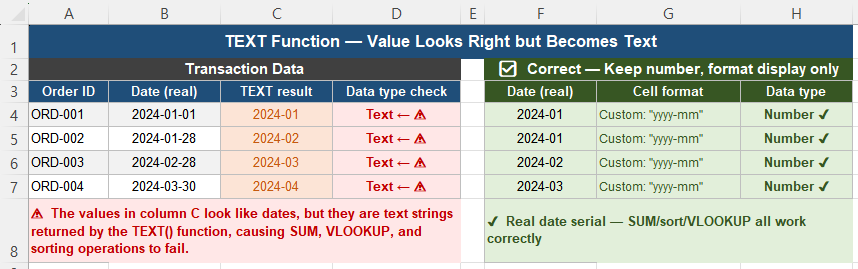
Here is the most common scenario. You receive transaction data with a date column. Management wants dates displayed as YYYY-MM for monthly reporting, so you create a helper column:
=TEXT(A2, "yyyy-mm")The column looks exactly right — 2024-01, 2024-02, 2024-03. You build the report around it. A week later:
- A Pivot Table cannot group the dates by month
- A VLOOKUP using the formatted date returns
#N/A - Sorting the column produces alphabetical order instead of chronological
- A SUM of the column returns zero
Every one of these failures has the same root cause: the TEXT column contains strings, not dates.
Why TEXT Always Returns Text
Excel stores dates and numbers as numeric values internally. A date like January 1, 2024 is stored as the serial number 45292. A revenue figure of $4,200,000 is stored as the number 4200000. What you see in the cell is a display format applied on top of that number — it does not change the underlying value.
TEXT works differently. It takes the numeric value and converts it into a character string — the same kind of string you would get by typing the date as text directly into a cell. Once that conversion happens, Excel has no way to treat the result as a number again without an explicit conversion step.
This is not a bug. TEXT is designed to produce strings. The problem is using it in places where a number is expected.
Four Ways TEXT Breaks Downstream Formulas
1. SUM and arithmetic return zero
Arithmetic operations on text strings return zero or an error rather than a sum. If a column of revenue figures has been passed through TEXT, any SUM formula on that column will return zero — with no error indicator.
=SUM(C2:C100) ← returns 0 if C column contains TEXT output2. VLOOKUP and XLOOKUP return #N/A
Lookup functions compare the lookup value against the lookup range. If one side is a number and the other is a text string that looks like that number, they do not match. A date stored as a serial number does not equal the same date stored as a TEXT string — even though both display the same characters.
=VLOOKUP(TEXT(TODAY(),"yyyy-mm-dd"), A:B, 2, FALSE) ← likely returns #N/A3. Sorting produces alphabetical instead of chronological order
When dates are stored as text strings, Excel sorts them as text — left to right, character by character. “2024-03” sorts before “2024-10” correctly, but “Jan” sorts before “Feb” alphabetically, placing January, July, and June together before February. This is almost never the intended order for date data.
4. Pivot Tables cannot group text dates
Pivot Table date grouping — by month, quarter, or year — requires real date serial numbers. Text strings that look like dates are treated as labels, not dates. The Group field option is unavailable or produces no grouping.

The Correct Approach for Each Scenario
Scenario: Display a date in a specific format
Wrong (converts to text):
=TEXT(A2, "yyyy-mm")Correct (keeps number, changes display only):
Select the cell → Format Cells (Ctrl + 1) → Number tab → Custom → type yyyy-mm
The cell displays 2024-01 but remains a date serial number internally. SUM, VLOOKUP, sorting, and Pivot grouping all continue to work.
Scenario: Display a number with currency and specific decimal places
Wrong:
=TEXT(B2, "$#,##0.00")Correct:
Format Cells → Number → Currency, or apply a custom format $#,##0.00 directly. The numeric value is preserved.
Scenario: Combine a date with text in a single cell
This is a legitimate use of TEXT — but the result must be a label only, never fed back into a calculation:
="Report generated: " & TEXT(TODAY(), "dddd, mmmm d, yyyy")The output is a display string. It is correct to use TEXT here because the combined result is never used in arithmetic or lookups.
How to check whether a cell contains a number or text
Select the cell and change the format to General. If a date shows a serial number (like 45292), the value is a real date. If it still shows the formatted date string, it is text. You can also use:
=ISNUMBER(A2) ← returns TRUE for real dates/numbers, FALSE for textWhen TEXT Is Safe to Use
TEXT is the right function in exactly two situations:
- Building display labels — headers, titles, or annotations that combine text with formatted numbers:
="Q1 Revenue: " & TEXT(B2, "$#,##0") - Exporting to text-based formats — CSV files, text reports, or systems that require a specific string format and do not accept numeric values
In both cases, the TEXT output is a final destination — it is never fed back into a formula that expects a number.
Design Reports in Three Layers
The most reliable way to avoid TEXT-related problems is to design workbooks in three distinct layers:
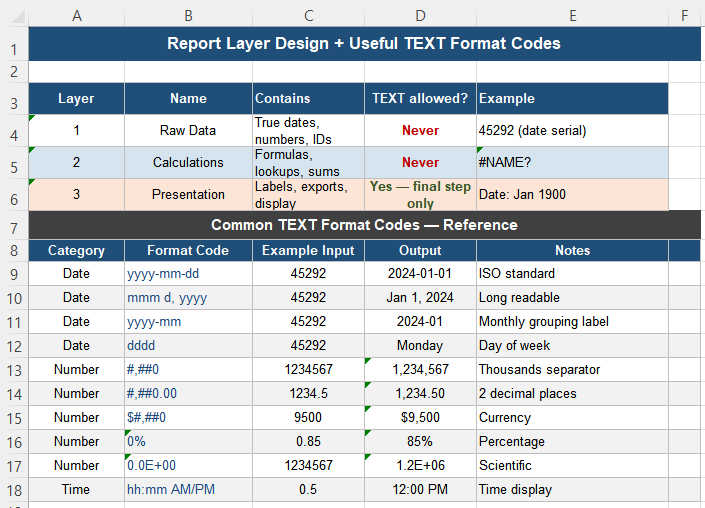
| Layer | Name | Contains | TEXT allowed? |
|---|---|---|---|
| 1 | Raw Data | True dates, numbers, IDs | Never |
| 2 | Calculations | Formulas, lookups, sums | Never |
| 3 | Presentation | Labels, exports, display strings | Yes — final step only |
When TEXT appears in layer 1 or 2, problems are guaranteed eventually. When TEXT is confined to layer 3, it causes no downstream issues because nothing depends on its output for further calculation.
Useful TEXT Format Code Reference
| Category | Format Code | Example Input | Output |
|---|---|---|---|
| Date | yyyy-mm-dd | Jan 1, 2024 | 2024-01-01 |
| Date | mmm d, yyyy | Jan 1, 2024 | Jan 1, 2024 |
| Date | yyyy-mm | Jan 1, 2024 | 2024-01 |
| Date | dddd | Jan 1, 2024 | Monday |
| Number | #,##0 | 1234567 | 1,234,567 |
| Number | $#,##0.00 | 9500 | $9,500.00 |
| Number | 0% | 0.85 | 85% |
| Number | 0.0E+00 | 1234567 | 1.2E+06 |
These format codes work identically in TEXT formulas and in the Format Cells dialog (Ctrl+1 → Custom). When the goal is display only, always prefer the Format Cells dialog — it leaves the underlying value intact.
Quick Checklist
- TEXT always returns a string — the result cannot be used in arithmetic or comparisons
- Dates formatted with TEXT cannot be sorted chronologically, grouped in Pivot Tables, or used in date calculations
- For display-only formatting, use Format Cells (Ctrl+1) → Custom — the value stays numeric
- Use
=ISNUMBER(A2)to verify whether a cell contains a real number or a text string - TEXT is safe only in layer 3 — presentation labels and export strings that are never fed back into formulas
- Keep the original date or number column intact alongside any TEXT helper column
Frequently Asked Questions
Why does SUM return 0 on a column formatted with TEXT?
SUM ignores text strings — it only adds numeric values. When TEXT converts numbers into strings, SUM sees an empty numeric range and returns zero. There is no error message. To fix this, replace the TEXT column with a column of original numeric values, and apply a custom cell format for display instead.
How do I format dates without using the TEXT function?
Select the cells containing real date serial numbers, press Ctrl+1 to open Format Cells, go to the Number tab, choose Custom, and type your format code (for example, yyyy-mm or mmm d, yyyy). The cell displays the formatted date but the underlying serial number is preserved. All formulas, sorts, and Pivot Table grouping continue to work correctly.
Why does VLOOKUP return #N/A when looking up a TEXT date?
VLOOKUP compares values by both content and data type. A date serial number (45292) and the text string “2024-01-01” look similar but are not equal to Excel. If the lookup value is a text string and the lookup range contains real dates, or vice versa, VLOOKUP finds no match and returns #N/A. Ensure both the lookup value and the lookup range use the same data type — either both real dates or both text strings.
How can I tell if a cell contains a real date or a text date?
Use =ISNUMBER(A1) — it returns TRUE for real dates and numbers, FALSE for text strings. Alternatively, change the cell format to General: a real date displays as a serial number (like 45292), while a text date continues to display as text. Real dates are also right-aligned by default; text values are left-aligned.
Is there ever a good reason to use TEXT in a data column?
Only when the column is a final output — for example, a column prepared for export to a CSV file or a text-based reporting system that requires a specific string format. In that case, keep the original numeric column intact alongside the TEXT column, and make sure no other formula references the TEXT column for calculation purposes.