A column labeled Weight contains values like 120kg, 85kg, and 100kg. They look perfectly usable. SUM returns zero. Sorting puts them in an order that makes no sense numerically. A lookup that should match fails outright.
Excel is not confused about what these values mean to a human reader — it simply does not analyze meaning at all. A cell either contains a pure number or it contains text, and a single letter anywhere in the cell makes the entire value text, regardless of how many digits surround it.
This post explains why mixed text and numbers cause this disconnect, walks through separating a real Weight column reliably, and gives you formula patterns for the most common mixed-data formats you will encounter.
What Mixed Cells Actually Do
Excel determines a cell’s data type by examining its entire content. If every character can be interpreted as part of a number, the cell is numeric. If even one character cannot — a letter, a unit symbol, a stray space combined with text — the entire cell becomes text, including the digits inside it.
This produces a specific and consistent set of failures:
- SUM and AVERAGE ignore the cell entirely — they only operate on numeric values, so a “120kg” cell contributes nothing to a total, with no error to flag it
- Sorting becomes alphabetical, not numerical — “100kg” sorts before “20kg” because “1” comes before “2” as a character, not because 100 is greater than 20
- VLOOKUP and MATCH fail to find matches — comparing “120kg” against a clean number 120 never succeeds, because they are different data types entirely
- Conditional formatting and data validation behave unexpectedly — numeric rules (greater than, less than) silently skip text-typed cells

Four Reasons This Keeps Happening
1. Excel reads structure, not meaning
Excel does not interpret a string and decide which portion “should” be numeric. It evaluates the cell as a whole. There is no partial-recognition mode where Excel treats the digits in “120kg” as numeric while ignoring the letters — the entire value is classified as one type or the other.
2. Business systems intentionally export mixed fields
Product codes like PRD10023, invoice labels like INV-45012, and measurements like 120kg or 30mm are designed to be human-readable in their source system. These formats prioritize clarity for people, not compatibility with spreadsheet arithmetic.
3. Visual similarity masks the underlying data type
A cell displaying 100kg looks numeric at a glance. Internally, Excel sees a sequence of characters with no numeric value at all. This gap between what you see and what Excel actually stores is precisely why SUM returns zero with no warning.
4. Manual fixes do not scale
Typing over a few cells, or using Find & Replace to strip “kg” from a column, works once. As soon as new rows are imported, the same mixed-format problem returns, because the fix addressed the symptom in that moment rather than building a repeatable process.
Separating Number and Unit: Full Scenario
Consider a Weight column containing values like 120kg, 85kg, and 100kg. The goal: a true numeric weight for calculations, the unit preserved separately, and a process that continues working as new rows are added.
Step 1 — Decide explicitly what must remain numeric. The weight value must become a real number. The unit “kg” belongs in a separate column or is dropped from the calculation layer entirely. Do not attempt to calculate directly on the mixed text.
Step 2 — Remove the text portion deliberately. Since the unit is consistent across the column, isolate the numeric part with SUBSTITUTE and VALUE:
=VALUE(SUBSTITUTE(A2, "kg", ""))SUBSTITUTE removes the “kg” text, leaving only the digits as a string. VALUE then converts that remaining string into a true number. After this step, the result participates correctly in SUM, AVERAGE, sorting, and any numeric comparison.
Step 3 — Keep the unit as presentation, not data. If “kg” needs to be displayed somewhere, add it back only in a final display column or through cell formatting — never recombine it into the column used for calculations.
=B2 & " kg" ← display-only concatenation, built from the clean numeric columnSeparation Patterns for Common Formats
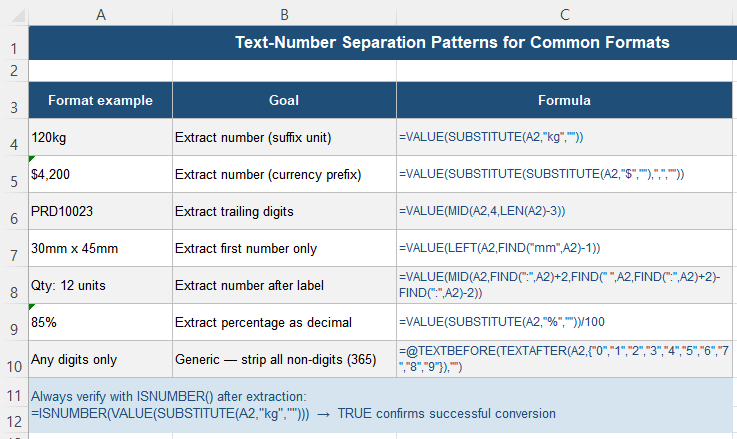
The exact formula depends on where the text portion sits relative to the number:
| Format example | Goal | Formula |
|---|---|---|
120kg | Extract number (suffix unit) | =VALUE(SUBSTITUTE(A2,"kg","")) |
$4,200 | Extract number (currency prefix, with comma) | =VALUE(SUBSTITUTE(SUBSTITUTE(A2,"$",""),",","")) |
PRD10023 | Extract trailing digits after a fixed prefix | =VALUE(MID(A2,4,LEN(A2)-3)) |
30mm x 45mm | Extract the first number only | =VALUE(LEFT(A2,FIND("mm",A2)-1)) |
85% | Extract percentage as a decimal value | =VALUE(SUBSTITUTE(A2,"%",""))/100 |
Sanity Check: Verifying the Separation Worked
After applying a separation formula, confirm it actually produced a number rather than a string that merely looks numeric:
| Check | Method | Pass criteria |
|---|---|---|
| Format check | Change the cell format to General | Should display a plain number, not the original text |
| Type check | =ISNUMBER(B2) | Should return TRUE |
| Math check | =SUM(B2:B10) | Should return the correct total, not zero |
| Sort check | Sort the column ascending | Should order numerically (1, 2, 10), not alphabetically (1, 10, 2) |
If all four checks pass, the separation is reliable and safe to use throughout the rest of the workbook.
Treat Mixed Fields as Untrusted Input
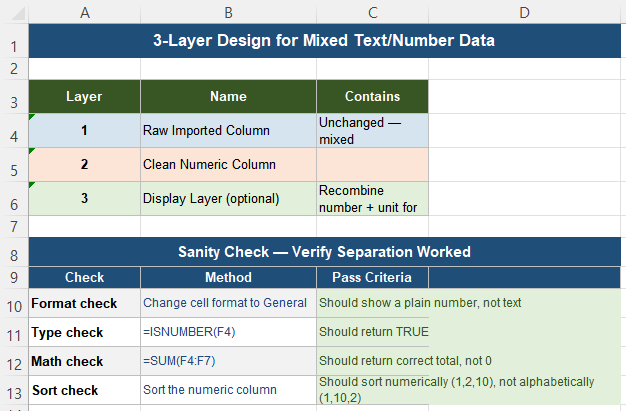
| Layer | Name | Contains |
|---|---|---|
| 1 | Raw Imported Column | Unchanged — mixed text and number; treat as untrusted input |
| 2 | Clean Numeric Column | =VALUE(SUBSTITUTE(...)) applied once — pure numbers only |
| 3 | Display Layer (optional) | Recombines number and unit for presentation only — never for calculation |
If multiple sheets each need the numeric value, clean it once and reference the cleaned column everywhere — never re-parse the original mixed string repeatedly in different formulas. For large datasets, this also keeps recalculation fast, since the text-parsing logic runs only once per row instead of once per formula that needs the value.
Quick Checklist
- A cell with any non-numeric character anywhere becomes entirely text, even if it contains digits
- SUM and AVERAGE silently ignore text-typed cells — no error, just a wrong total
- Sorting on mixed-type columns produces alphabetical, not numerical, order
- Use SUBSTITUTE to remove the consistent text portion, then VALUE to convert the remainder to a number
- Keep the unit or label as a separate column or display-only concatenation — never recombine it into the calculation layer
- Verify with ISNUMBER() and a test SUM after every separation formula
- Treat any newly imported mixed-format column as untrusted until it has been explicitly separated
- Clean once in a dedicated helper column; never repeat the parsing logic across multiple formulas
Frequently Asked Questions
Why does SUM return 0 for a column that looks like it contains numbers?
If the cells contain any non-numeric character — such as a unit like “kg” or a product code prefix — the entire cell is stored as text, even though it visually displays numbers. SUM only adds true numeric values and silently ignores text, returning 0 for a range that contains only text-typed cells. Use =VALUE(SUBSTITUTE(A2,”kg”,””)) or a similar formula to extract a true numeric value before summing.
How do I remove a unit like “kg” or “%” from a number in Excel?
Use SUBSTITUTE to remove the unit text, then wrap the result in VALUE to convert it to a true number: =VALUE(SUBSTITUTE(A2,”kg”,””)). For percentages stored as text like “85%”, use =VALUE(SUBSTITUTE(A2,”%”,””))/100 to get the correct decimal value. Always verify the result with ISNUMBER() to confirm the conversion succeeded.
Why does my data sort in the wrong order even though it looks numeric?
If the values are stored as text rather than true numbers, Excel sorts them character by character, alphabetically. This means “100kg” sorts before “20kg”, because “1” comes before “2” as the first character, regardless of the numeric value being smaller. Convert the column to true numbers using VALUE and SUBSTITUTE, then sort — the order will become numerically correct.
Should I keep the unit in the same cell as the number?
No — keep the numeric value and the unit in separate columns, or recombine them only in a final display-only column. Mixing them in the same cell used for calculations guarantees that SUM, sorting, and lookups will fail. If a combined display like “120 kg” is needed for a report, build it from the clean numeric column with concatenation, applied only at the presentation stage, never in the calculation layer.
How can I verify that a separation formula actually produced a number?
Use =ISNUMBER(B2) on the result — it returns TRUE only for genuine numeric values, not text that merely looks numeric. You can also change the cell’s format to General; a true number will display as a plain numeric value, while text will display unchanged. Finally, run a test SUM over the column — if it returns a correct, non-zero total, the separation succeeded.