The workbook used to feel instant. Now you press Enter and wait. You scroll and the screen stutters. Refresh a data connection and Excel freezes for several seconds before responding. Nothing about your formulas changed — the data simply grew, and VLOOKUP became one of the slowest parts of the file.
This is not VLOOKUP malfunctioning. It is VLOOKUP doing exactly what it was asked to do, at a scale where that approach becomes expensive. Understanding precisely why it slows down is what lets you fix performance without rewriting your business logic.
This post walks through the real mechanics behind VLOOKUP’s performance cost, applies the fixes to a realistic 50,000-row sales report scenario, and gives you a four-layer structure for keeping large workbooks responsive long-term.
What “Slow” Actually Looks Like
The expectation is that lookups scale smoothly with data — more rows simply means more results, with no change in responsiveness. What actually happens is that VLOOKUP, run thousands of times across a growing dataset, becomes one of the most expensive operations in the entire workbook, and the slowdown shows up as exactly the kind of lag described above: delayed keystrokes, stuttering scrolls, and frozen refreshes.
Four Reasons VLOOKUP Slows Down
1. VLOOKUP scans data row by row in exact match mode
With exact match (FALSE or 0, the setting almost every correct VLOOKUP should use), Excel checks rows one at a time until it finds a match. Ten rows is trivial. Ten thousand rows is noticeable. A hundred thousand rows, multiplied across hundreds of formulas that each perform this scan independently, becomes genuinely painful — and Excel repeats this scan for every single formula, even when the lookup table itself never changes.
2. Whole-column references multiply the work
A formula like =VLOOKUP(A2, Sheet2!A:B, 2, FALSE) looks clean, but Excel does not assume your data only occupies the rows that have content. It evaluates the entire referenced range during calculation — over one million rows — regardless of whether only five thousand of them contain actual data.
3. VLOOKUP recalculates more often than expected
VLOOKUP is not a volatile function, but it depends on potentially large ranges. Any change to the lookup value, the lookup table, or any formula that depends on the result can trigger a recalculation cascade. As workbooks grow and formulas become more interconnected, this cost becomes increasingly visible.
4. Exact match is the safe choice — and the slower one
Most correct reports use exact match (FALSE) deliberately, because approximate match (TRUE) only produces correct results when data is sorted and the business logic genuinely allows nearest-match behavior. Approximate match uses a faster algorithm internally, but most real-world lookups cannot safely use it — which is exactly why exact match’s slower row-by-row scan is usually the right trade-off, not a mistake to avoid.
Scenario: A 50,000-Row Sales Report
Consider a monthly sales report with 50,000 transaction rows. Each row uses VLOOKUP to pull a product price from a master table containing 10,000 products. The report also includes several calculated columns built on top of that price. As the transaction count has grown month over month, the workbook has become slow to open and slow to recalculate.
The following fixes address this without changing any business logic or altering a single calculated result.
Fix 1 — Limit the Lookup Range Explicitly
Replace whole-column references with a realistic bounded range:
-- Before (scans 1,048,576 rows):
=VLOOKUP(A2, Master!A:B, 2, FALSE)

-- After (scans 10,000 rows):
=VLOOKUP(A2, Master!A1:B10000, 2, FALSE)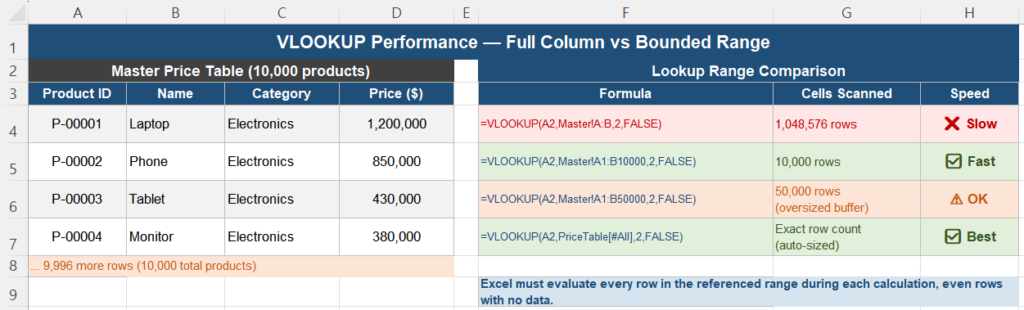
This single change is usually the highest-impact fix available, because it directly reduces the number of cells Excel must evaluate on every recalculation — with zero change to the logic or the result.
The most robust version of this fix uses an Excel Table reference, which automatically sizes itself to the actual data and never needs manual adjustment as rows are added:
=VLOOKUP(A2, PriceTable[#All], 2, FALSE)Fix 2 — Stop Repeating the Same Lookup
If multiple columns in a row all pull from the same master table — price, category, tax rate — running a separate VLOOKUP for each one triples the lookup cost for no benefit.
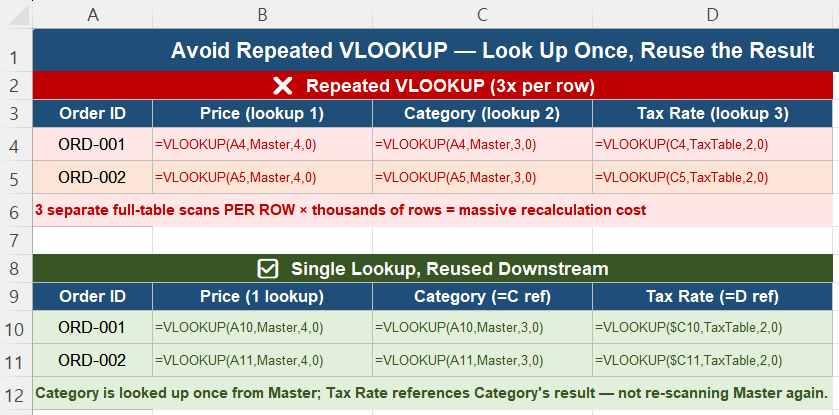
Instead, perform one lookup, store the result in its own column, and reference that column in every downstream calculation:
-- Column C: =VLOOKUP(A2, Master, 4, FALSE)        ← price, looked up once
-- Column D: =VLOOKUP(A2, Master, 3, FALSE)        ← category, looked up once
-- Column E: =VLOOKUP($C2, TaxTable, 2, FALSE)      ← tax rate, based on category result
This reduces both the number of lookup executions and the overall recalculation cost, and it eliminates duplicated formula logic across the sheet.
Fix 3 — Lock and Isolate Lookup Tables
If the lookup table itself does not change often, keep it on a dedicated separate sheet, avoid any formulas that modify it in place, and never mix lookup-table data with calculation logic on the same sheet. This separation helps Excel isolate the scope of what needs to be recalculated when something changes elsewhere in the workbook, which directly improves responsiveness.
Fix 4 — Consider Table Width and Direction
VLOOKUP always searches left to right. If your key column sits far from the result column you need, Excel still scans the entire width of the table for every lookup — wider tables increase both memory use and calculation cost. Narrowing the lookup table to only the columns actually needed, or restructuring it so the key and frequently-needed results sit closer together, reduces this overhead without requiring any formula changes.
Separate Lookup, Calculation, and Reporting
Stable, large workbooks consistently follow a four-layer pattern. VLOOKUP belongs specifically in layer 2 — not scattered throughout every sheet.
| Layer | Name | Contains |
|---|---|---|
| 1 | Raw Data | Transaction rows — untouched source data |
| 2 | Lookup Results | VLOOKUP calculated once per needed value, isolated here |
| 3 | Calculations | Formulas built on Layer 2 results — never re-running the lookup |
| 4 | Presentation | The final formatted report — references Layer 3 only |
When lookup tables exceed tens of thousands of rows, when many formulas depend on the same lookup, or when performance complaints become a recurring theme, it is time to reconsider the structure rather than continuing to patch individual formulas. This is not over-engineering — it is responding directly to how Excel actually performs calculation at scale.
Sanity Check: Measure Performance, Not Just Results
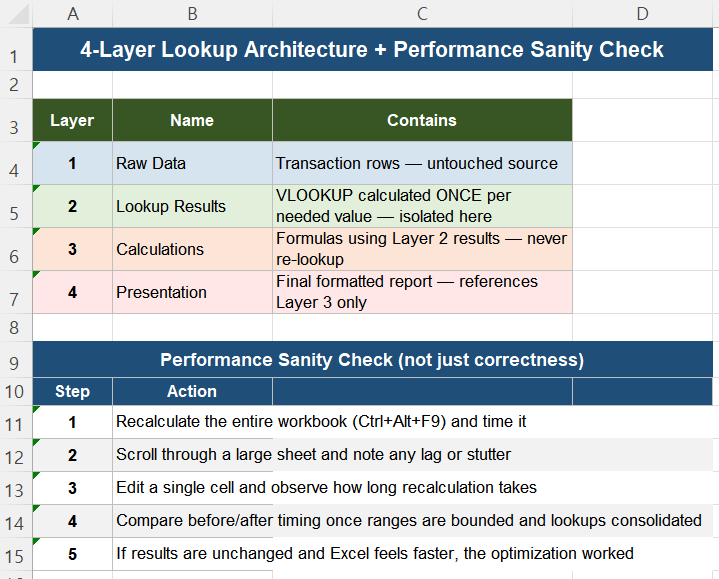
After applying any of these fixes, confirm the improvement directly rather than assuming it worked:
- Recalculate the entire workbook (Ctrl + Alt + F9) and note how long it takes.
- Scroll through a large sheet and observe whether the screen stutters.
- Edit a single cell and watch how long recalculation takes to settle.
- Compare this timing against how the workbook behaved before the change.
- If the results are identical and the workbook feels noticeably faster, the optimization succeeded.
Quick Checklist
- Exact match VLOOKUP scans rows one by one — cost grows with both row count and formula count
- Full column references force Excel to evaluate over one million rows regardless of actual data size
- Replace whole-column references with bounded ranges or Excel Table references
- Never run the same VLOOKUP multiple times per row — look up once and reference the result downstream
- Keep lookup tables on a dedicated sheet, isolated from calculation logic
- Narrow lookup tables to only the columns needed — wide tables increase scan cost
- Separate raw data, lookup results, calculations, and presentation into four distinct layers
- Verify performance improvements by timing recalculation, not just checking that results are correct
Frequently Asked Questions
Why does my Excel file get slower as the data grows, even though the formulas haven’t changed?
VLOOKUP in exact match mode scans rows one by one until it finds a match. As the dataset grows, each lookup takes longer, and if the workbook contains many VLOOKUP formulas — especially with full column references — the cumulative recalculation cost increases significantly. The formulas themselves are unchanged; the cost simply scales with the amount of data being scanned.
Does using A:B instead of a bounded range actually slow down VLOOKUP?
Yes. A full column reference like A:B forces Excel to consider over one million rows during calculation, even if your actual data only occupies a few thousand of them. Replacing it with a bounded range, such as A1:B10000, or with an Excel Table reference that automatically sizes itself, can produce a substantial performance improvement with no change to the formula’s result.
Should I switch from VLOOKUP to INDEX/MATCH or XLOOKUP for better performance?
Performance differences between VLOOKUP, INDEX/MATCH, and XLOOKUP are generally smaller than the impact of range size and repeated lookups. Before switching functions, fix the range references and eliminate redundant repeated lookups first — these changes typically produce the largest improvements. XLOOKUP and INDEX/MATCH offer other real advantages, like surviving column reordering, but they are not inherently dramatically faster than a properly bounded VLOOKUP.
How do I avoid running the same lookup multiple times in one row?
Perform the lookup once in a dedicated column, then reference that column’s result in every formula that needs it, rather than calling VLOOKUP again for each downstream calculation. For example, look up Category once in column D, then have a Tax Rate formula in column E reference column D instead of looking up Category from the master table a second time.
At what dataset size should I worry about VLOOKUP performance?
There is no fixed row count that triggers problems for every workbook, since the impact depends on the number of VLOOKUP formulas, range sizes, and how interconnected the calculations are. As a practical signal, treat recurring complaints about slow recalculation, lookup tables exceeding tens of thousands of rows, or many formulas depending on the same lookup as the point to review and restructure, rather than waiting for the workbook to become unusable.