You need total sales where the region is East and the sales type is either Online or Phone. You add both Sales Type values as separate criteria into one SUMIFS, expecting Excel to understand “either of these.” The formula runs, returns a number, shows no error — and the number is wrong.
This is not a syntax mistake. SUMIFS is doing exactly what it was built to do: applying AND logic across every criteria pair you give it. The fix is not a different syntax inside SUMIFS — it is recognizing that SUMIFS cannot express OR logic internally, and building that logic outside the function instead.
This post walks through the exact East-region scenario, the working multi-SUMIFS pattern, the assumption that pattern depends on, and how to scale it cleanly when the OR list grows.
Why the Obvious Formula Returns the Wrong Number
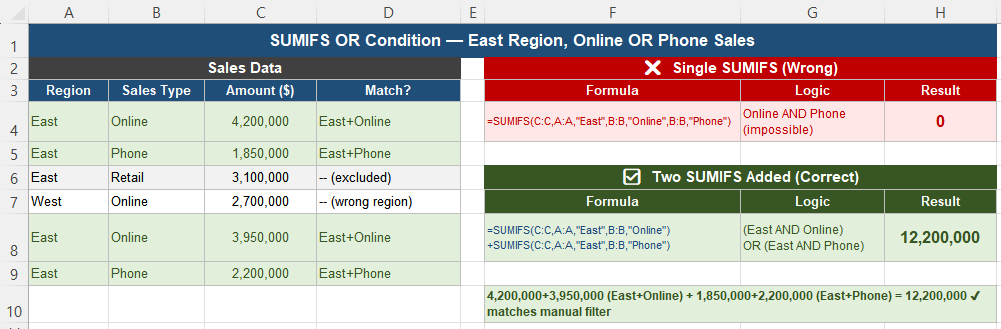
Consider a sales table with Region, Sales Type, and Amount columns. The requirement: total sales where Region equals “East” and Sales Type is either “Online” or “Phone.”
The instinctive first attempt looks like this:
=SUMIFS(Amount, Region, "East", SalesType, "Online", SalesType, "Phone")This returns zero, or a number far smaller than expected. The formula is syntactically valid — it runs without any error — which is exactly why the mistake is dangerous. It looks like a working report.
The problem is what this formula actually asks for. By passing two criteria against the same column, you are asking Excel to find rows where Sales Type equals “Online” and simultaneously equals “Phone.” No single cell can hold two different text values at once, so no row ever satisfies both conditions, and the sum comes back as zero or drastically understated.
Four Reasons This Keeps Happening
1. SUMIFS is strictly AND-based by design
SUMIFS evaluates every criteria pair together. A row is included in the sum only if all conditions are true simultaneously. There is no internal mechanism for “any one of these conditions” — the function was never built to branch.
2. Excel does not infer logical intent from natural language
When you think “Status is A or B,” Excel does not translate that phrase into OR logic automatically. Passing multiple criteria values against a single column is interpreted as “Status is A and B,” which is a different statement entirely, and one that is usually impossible to satisfy.
3. The formula hides the mistake well
The result is a plausible-looking number. There is no error, no red flag, nothing that distinguishes “intentionally small total” from “logically impossible condition returning near-zero.” This is precisely what makes the error dangerous in a report nobody double-checks.
4. The natural reaction makes the formula worse, not better
A common response to the wrong result is adding more criteria, nesting SUMIFS calls incorrectly, or introducing helper columns without a clear underlying logic. These attempts often make the formula harder to audit without resolving the actual AND/OR mismatch.
The Correct Pattern: Add Separate SUMIFS
The reliable approach is to write one SUMIFS per OR condition, each expressing valid AND logic on its own, and then add the results together:
=SUMIFS(Amount, Region, "East", SalesType, "Online")
 + SUMIFS(Amount, Region, "East", SalesType, "Phone")
This works because each individual SUMIFS asks a question Excel can actually answer: “sum where Region is East and Sales Type is Online” is a coherent AND statement, and so is the Phone version. Addition between the two results produces the OR behavior at the level of the formula as a whole.
Conceptually, this expresses:
(East AND Online) OR (East AND Phone)This is the standard, auditable pattern for OR logic in SUMIFS — not a workaround, but the correct way to express this logic given how the function is designed.
The Double-Counting Assumption
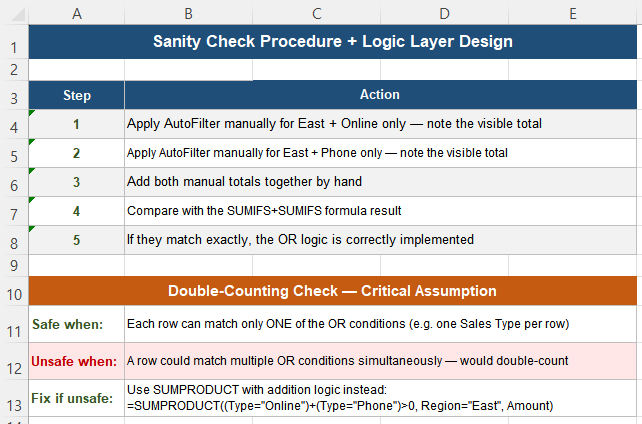
This addition pattern is reliable only under one condition: each row must be capable of matching at most one of the OR criteria. If a single row could simultaneously satisfy more than one condition, adding the SUMIFS results would count that row’s amount more than once, inflating the total.
In the sales scenario, this holds because each transaction has exactly one Sales Type value — a row cannot be both “Online” and “Phone” at the same time. In most real datasets structured this way, the assumption is safe by construction.
If your data structure allows a row to match multiple OR conditions at once, the addition pattern is not safe. In that case, use SUMPRODUCT with explicit OR logic instead:
=SUMPRODUCT(((SalesType="Online")+(SalesType="Phone")>0) * (Region="East") * Amount)The >0 check converts the OR condition into a single TRUE/FALSE per row without counting any row twice, regardless of how many of the OR conditions it happens to satisfy.
Scaling to More OR Values With Helper Cells
When the OR list grows beyond two or three values, hardcoding each value directly into the formula becomes hard to read and hard to maintain. Helper cells solve this cleanly:
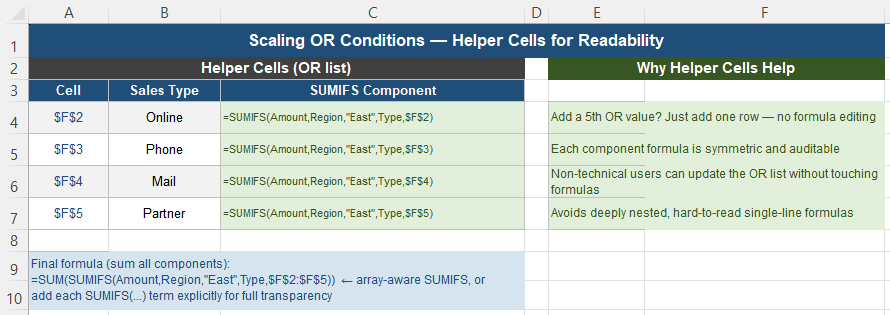
Place each Sales Type value to include in its own cell (for example, F2 through F5), then write one symmetric SUMIFS component per cell:
=SUMIFS(Amount, Region, "East", SalesType, $F$2)
=SUMIFS(Amount, Region, "East", SalesType, $F$3)
=SUMIFS(Amount, Region, "East", SalesType, $F$4)
Sum these components for the final total. Adding a fifth OR value now means adding one row to the helper list — no formula needs to be rewritten, and the logic remains fully auditable by anyone reviewing the sheet.
Sanity Check: Verify Against a Manual Filter
After implementing the fix, confirm it independently:
- Apply AutoFilter manually for East + Online only, and note the visible total.
- Apply AutoFilter manually for East + Phone only, and note the visible total.
- Add both manually filtered totals together by hand.
- Compare this manual sum against the formula result.
If the two numbers match exactly, the OR logic has been implemented correctly. This manual cross-check is the most reliable way to confirm a SUMIFS-based OR pattern before relying on it in a distributed report.
Better Practice — Model Logic Before Writing Formulas
The deeper issue behind SUMIFS OR mistakes is rarely the function itself — it is how conditions are modeled before any formula gets written. Before building the formula, identify explicitly which conditions must all be true together (AND) and which represent alternative acceptable values (OR). If this distinction cannot be stated clearly in words, Excel has no way to infer it correctly from the formula structure.
SUMIFS is well suited to fixed, cumulative conditions and stable reporting logic — it is not designed to branch internally. When branching is genuinely required, combine separate results explicitly rather than trying to force OR behavior into a single AND-based function call.
For very large datasets with repeated OR logic across many reports, calculate each OR component once and reuse the result downstream, rather than repeating the same SUMIFS pattern in multiple places. This improves both performance and auditability.
Quick Checklist
- SUMIFS always applies AND logic across every criteria pair — there is no built-in OR mode
- Passing multiple values against the same column asks for an impossible “equals both” condition
- The fix is to write one SUMIFS per OR condition and add the results together
- This addition pattern is safe only when each row can match at most one OR condition
- If rows could match multiple conditions, use SUMPRODUCT with addition-based OR logic instead
- Use helper cells to scale to many OR values without rewriting the formula each time
- Always verify the result against a manual AutoFilter total before trusting it in a report
- Model which conditions are AND and which are OR in words first — Excel cannot infer this from formula structure alone
Frequently Asked Questions
Why does SUMIFS return 0 when I list two values for the same column?
SUMIFS treats every criteria pair as an AND condition. Listing two different values for the same column, such as “Online” and “Phone” for Sales Type, asks Excel to find rows where that column equals both values simultaneously — which is impossible for any single cell, so the result is 0 or far lower than expected. To express OR logic, write separate SUMIFS formulas for each value and add the results together.
Is adding two SUMIFS formulas together always safe for OR logic?
It is safe only when each row can match at most one of the OR conditions — for example, when each transaction has exactly one Sales Type value. If a row could satisfy more than one OR condition at the same time, adding separate SUMIFS results would count that row more than once, inflating the total. In that case, use SUMPRODUCT with an addition-based OR check instead, which avoids double-counting regardless of how many conditions a row satisfies.
How do I write a SUMIFS OR formula for many possible values?
Store each OR value in its own helper cell, then write one symmetric SUMIFS component referencing each cell, and sum the components together. This keeps the formula readable and lets you add a new OR value by adding one row to the helper list, without editing any formula. Hardcoding many values directly into nested formulas becomes difficult to read and maintain as the list grows.
How can I verify that my SUMIFS OR formula is correct?
Apply AutoFilter manually for each OR condition separately, note the visible total for each, add those manual totals together by hand, and compare the result against your formula’s output. If they match exactly, the OR logic has been implemented correctly. This manual cross-check is especially important before distributing a report based on the formula.
What is the difference between using SUMIFS addition and SUMPRODUCT for OR conditions?
Adding separate SUMIFS results is simpler to read and works correctly as long as no row can match more than one OR condition. SUMPRODUCT with an addition-based condition check, such as (Type=”Online”)+(Type=”Phone”)>0, evaluates the OR logic at the row level before summing, which avoids double-counting even if a row could theoretically satisfy multiple conditions. SUMPRODUCT is more robust for complex or uncertain data structures; separate SUMIFS calls are simpler for straightforward cases.