You need to flag rows where the status is either “Open” or “Pending.” You write what feels like natural logic — =IF(A2="Open" OR A2="Pending", "Active", "Done") — and Excel returns either an error or always triggers the false branch. The word “OR” in that formula is treated as text, not as logic, and the condition fails silently.
OR logic appears in almost every real-world Excel report. It is also one of the most consistently misexpressed conditions, because the way you say OR in everyday language is not how Excel’s formula language encodes it. This post explains the distinction, shows you the correct pattern for each function you are likely using, and gives you a verification method that catches mistakes before they reach a report.
Why Typing “OR” in a Formula Doesn’t Work
Excel’s formula language does not recognize the word “OR” placed between two conditions as a logical operator. It is not a reserved keyword that connects conditions the way it does in SQL, Python, or everyday language. When you write:
=IF(A2="Open" OR A2="Pending", "Active", "Done")Excel either returns an error because it cannot parse the formula, or it misinterprets “OR” as a reference to a named cell or range, or it evaluates the entire expression in an unexpected way. In any case, the result is not the OR logic you intended.
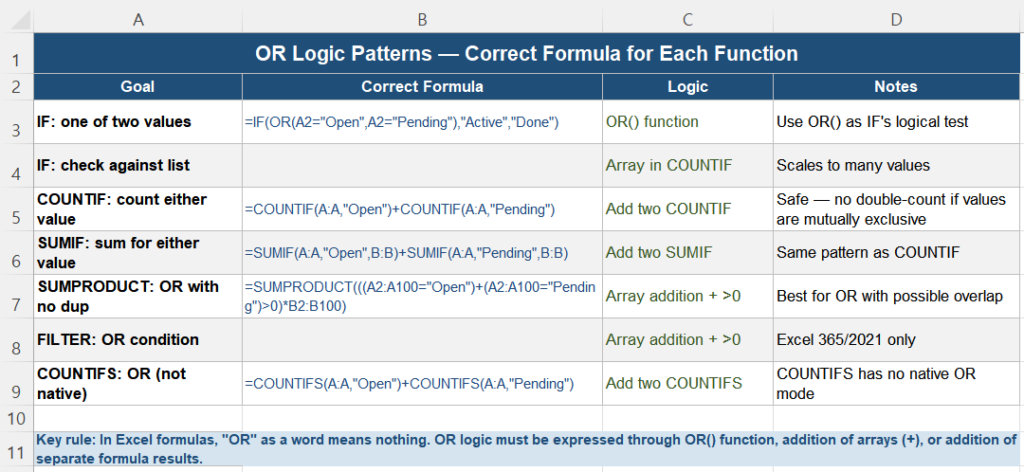
The correct expression of OR logic in Excel depends on which function you are using, and the pattern varies between them. There is no single universal syntax — IF, COUNTIF, SUMIF, and FILTER all express OR differently.
Four Reasons OR Logic Keeps Breaking
1. Natural language maps poorly to formula syntax
The way we express OR conditions in conversation — “if the status is Open or Pending” — does not translate directly into formula syntax. Each function has its own way of accepting OR logic, and none of them uses the English word “OR” as a standalone operator between conditions.
2. COUNTIF and SUMIF accept only one criterion per call
Both functions were designed around a single condition per formula call. There is no built-in OR argument. Attempting to express two values as one criterion — "Open OR Pending" or trying to pass both values as a list — does not work. The correct pattern is adding two separate formula results together.
3. The OR() function only works inside IF
Excel’s OR() function is designed to be the logical test inside an IF() formula. It does not work as a stand-alone condition inside COUNTIF, SUMIF, or FILTER. Trying to use it there produces an error or the wrong result.
4. Array OR logic uses addition, not the word “OR”
In array-based formulas like SUMPRODUCT and FILTER, OR logic is expressed by adding condition arrays together: (condition1) + (condition2). This produces values of 0, 1, or 2, and a >0 check converts the result to a single TRUE/FALSE per row. This pattern is completely different from anything in natural language.
OR in IF Formulas
This is the one context where the OR() function is designed to be used. It wraps multiple conditions and returns TRUE if any one of them is true:
=IF(OR(A2="Open", A2="Pending"), "Active", "Done")For an OR check against a longer list of values, COUNTIF with an array constant is cleaner:
=IF(COUNTIF({"Open","Pending","In Progress"}, A2), "Active", "Done")This returns TRUE (and triggers the “Active” result) if A2 matches any value in the list, regardless of how many options the list contains.

OR in COUNTIF and COUNTIFS
COUNTIF accepts exactly one criterion. For OR logic, write one COUNTIF per condition and add the results:
=COUNTIF(A:A, "Open") + COUNTIF(A:A, "Pending")This is safe as long as each cell can only match one of the values — which is true for mutually exclusive text categories like Status values. The same pattern extends to COUNTIFS when you also need to filter by a second column:
=COUNTIFS(A:A,"Open", B:B,"Seoul") + COUNTIFS(A:A,"Pending", B:B,"Seoul")For more on COUNTIFS performance and patterns, see Why COUNTIFS Gets Slow with Multiple Conditions in Excel.
OR in SUMIF and SUMIFS
The same addition pattern applies to SUMIF and SUMIFS. For OR logic across a sum range:
=SUMIF(A:A, "Open", B:B) + SUMIF(A:A, "Pending", B:B)For OR conditions with SUMIFS where additional AND conditions also apply:
=SUMIFS(B:B, A:A, "Open", C:C, "Seoul") + SUMIFS(B:B, A:A, "Pending", C:C, "Seoul")For a deep dive into the exact mechanics of this pattern and when it can double-count, see How to Calculate OR Conditions Correctly With SUMIFS.
OR in FILTER
FILTER uses array math to express OR logic. Adding condition arrays together produces a non-zero result whenever either condition is true:
-- Wrong (treats "OR" as text):
=FILTER(A:B, A:A="Open" OR A:A="Pending")

-- Correct (array addition with >0 check):
=FILTER(A:B, (A:A="Open") + (A:A="Pending") > 0)
The >0 check converts the sum of the condition arrays — which can be 0, 1, or 2 — into a single TRUE/FALSE per row. A row where the Status is either “Open” or “Pending” produces a 1 or 2, which is >0, and is included in the filtered result.
For more on FILTER patterns including AND conditions and version compatibility, see Why Conditional Data Extraction Breaks in Excel Reports.
OR With SUMPRODUCT (Universal Pattern)
SUMPRODUCT is the most flexible option for OR-based counting and summing. It uses the same array addition principle as FILTER and works in all Excel versions:
Count rows where Status is Open or Pending:
=SUMPRODUCT(((A2:A100="Open") + (A2:A100="Pending") > 0) * 1)Sum Sales where Status is Open or Pending:
=SUMPRODUCT(((A2:A100="Open") + (A2:A100="Pending") > 0) * B2:B100)The >0 check prevents double-counting in cases where a row could theoretically satisfy more than one OR condition. For Status values that are mutually exclusive, this check is technically redundant — but it is a good habit that makes the formula safe for any future change in data structure.
Sanity Check
Before relying on an OR formula in a distributed report, verify it independently:
- Apply AutoFilter to the Status column and filter for “Open” only. Count the visible rows and note the count.
- Change the filter to “Pending” only. Count those rows and note the count.
- Add the two manual counts together.
- Compare the sum against your formula’s result.
If they match exactly, the OR logic is correct. If they differ, the formula is either double-counting (if the formula result is higher) or missing some matches (if it is lower). Both indicate a structural issue in the formula that should be resolved before the report is shared.
Quick Checklist
- The word “OR” between two conditions in a formula is not an operator — it either causes an error or is treated as a cell reference
- In IF formulas, use the OR() function: =IF(OR(A2=”Open”,A2=”Pending”),…)
- In COUNTIF and SUMIF, add two separate formulas: =COUNTIF(A:A,”Open”)+COUNTIF(A:A,”Pending”)
- In FILTER and SUMPRODUCT, use array addition with a >0 check: (A:A=”Open”)+(A:A=”Pending”)>0
- The COUNTIF array pattern works for IF with many values: =IF(COUNTIF({“Open”,”Pending”},A2),…)
- Add formula results rather than combining them in one call — COUNTIF and SUMIF take only one criterion per call
- Verify OR results against a manual AutoFilter count before distributing any report
- The >0 check in array formulas prevents double-counting when conditions could overlap
Frequently Asked Questions
Why doesn’t =IF(A2=”Open” OR A2=”Pending”,…) work in Excel?
The word “OR” placed between two conditions is not recognized as a logical operator in Excel’s formula language. Excel either returns a syntax error or misinterprets “OR” as a cell reference. To express OR logic inside an IF formula, use the OR() function as the logical test: =IF(OR(A2=”Open”,A2=”Pending”),”Active”,”Done”). The OR() function takes multiple conditions as arguments and returns TRUE if any one of them is true.
How do I count rows where a cell contains either of two values?
Write one COUNTIF for each value and add the results: =COUNTIF(A:A,”Open”)+COUNTIF(A:A,”Pending”). COUNTIF accepts only one criterion per call, so there is no built-in OR mode. This addition approach is safe when each cell can match only one of the values — which is true for mutually exclusive categories like status values. If values might overlap, use SUMPRODUCT with array addition: =SUMPRODUCT(((A2:A100=”Open”)+(A2:A100=”Pending”)>0)*1).
How do I use FILTER to show rows where a column contains either of two values?
Use array addition in the condition argument: =FILTER(A:B,(A:A=”Open”)+(A:A=”Pending”)>0). Adding the two condition arrays produces a value of 0, 1, or 2 for each row. The >0 check converts this to TRUE (include) or FALSE (exclude) for each row. FILTER then returns only the rows where the result is TRUE — meaning at least one of the two conditions was met.
What is the difference between using OR() and adding two COUNTIF formulas?
OR() is a function that returns TRUE or FALSE and is designed to be used inside IF() as the logical test. It does not work inside COUNTIF or SUMIF. Adding two COUNTIF formulas is the correct pattern for those functions — each COUNTIF handles one condition, and the addition produces the total count for either condition. The OR() function and the addition-of-COUNTIF approach produce equivalent results in an IF context, but they are not interchangeable across different functions.
How do I check if a cell matches any value in a longer list?
Use COUNTIF with an array constant as the criteria: =COUNTIF({“Open”,”Pending”,”In Progress”},A2)>0. This returns TRUE if A2 matches any value in the list. Combined with IF: =IF(COUNTIF({“Open”,”Pending”,”In Progress”},A2),”Active”,”Done”). This scales to any number of values without adding more OR() arguments or more COUNTIF calls — you simply extend the array constant.
Related Articles
- How to Calculate OR Conditions Correctly With SUMIFS
- Why COUNTIFS Gets Slow with Multiple Conditions in Excel
- Why Conditional Data Extraction Breaks in Excel Reports
Modified at 2026/9/30