COUNTIFS is one of the most useful functions in Excel — until the workbook starts freezing every time a cell changes. You add one more condition, reference one more column, and suddenly a calculation that used to take a second now takes thirty.
The slowdown is real, but it is not random. COUNTIFS follows predictable rules, and those rules determine exactly when performance degrades. Understanding them means you can write fast COUNTIFS formulas from the start, and fix slow ones without replacing them entirely.
This post covers the four main causes of slow COUNTIFS, shows you how to fix each one, explains why OR conditions require a different approach, and tells you when to stop using COUNTIFS and use a Pivot Table instead.
How COUNTIFS Works Internally
COUNTIFS scans each criteria range from top to bottom and checks whether each cell meets the corresponding condition. For every row, it evaluates all conditions and increments the count only if every condition is true.
This means the calculation time scales with two factors: the number of rows in the range, and the number of condition pairs. Double the rows, and calculation time roughly doubles. Add a third condition pair, and Excel runs one more full scan of the data.
For small datasets — a few hundred or a few thousand rows — this is fast enough to be invisible. For datasets with tens of thousands of rows, or workbooks with dozens of COUNTIFS formulas all referencing the same large range, the cumulative cost becomes significant.
Four Causes of Slow COUNTIFS
1. Full column references
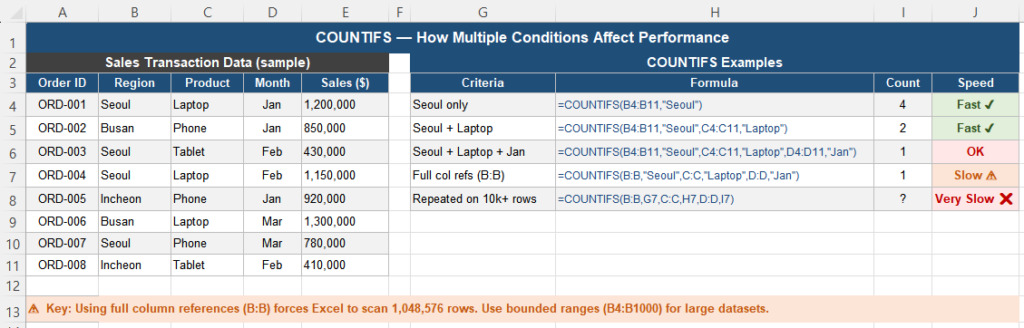
The most common cause of slow COUNTIFS is using full column references like B:B instead of bounded ranges like B2:B10000.
=COUNTIFS(B:B,"Seoul",C:C,"Laptop")   ← scans 1,048,576 rows
=COUNTIFS(B2:B5000,"Seoul",C2:C5000,"Laptop")   ← scans 4,999 rows
Excel must evaluate every cell in the referenced range, including all the empty cells below your data. With a full column reference, that means scanning over one million rows even if your data only occupies a few hundred of them.
2. Too many condition pairs on large data
Each condition pair adds one full scan of the data. Two conditions mean two scans. Five conditions mean five scans. On a dataset with 100,000 rows and six COUNTIFS conditions, Excel performs 600,000 cell evaluations for a single formula — and recalculates every time any cell in the workbook changes.
3. Volatile functions in criteria
If any cell referenced in COUNTIFS criteria contains a volatile function — TODAY(), NOW(), RAND(), INDIRECT(), OFFSET() — the COUNTIFS recalculates on every single keystroke anywhere in the workbook, not just when relevant data changes.
=COUNTIFS(A:A,">="&TODAY()) ← recalculates constantlyThis makes workbooks feel sluggish even when COUNTIFS itself is fast.
4. Array formulas wrapping COUNTIFS
Older Excel techniques sometimes used Ctrl+Shift+Enter array formulas to extend COUNTIFS functionality. Array formulas multiply the number of calculations exponentially and are a major source of performance problems in workbooks with large datasets.
How to Fix Each Cause
Fix 1 — Replace full column references with bounded ranges
The single highest-impact change you can make. Replace A:A with a range that covers your data plus a reasonable buffer:
-- Before (slow):
=COUNTIFS(A:A,"Seoul",B:B,"Laptop",C:C,"Jan")

-- After (fast):
=COUNTIFS(A2:A10000,"Seoul",B2:B10000,"Laptop",C2:C10000,"Jan")
If your data is in an Excel Table (created with Ctrl+T), use the table column reference instead — it automatically adjusts to the actual data size:
=COUNTIFS(Sales[Region],"Seoul",Sales[Product],"Laptop")Fix 2 — Reduce unnecessary condition pairs
Before writing a six-condition COUNTIFS, ask whether all six conditions are necessary. Sometimes two conditions already filter the data sufficiently, and the remaining conditions are redundant. Fewer conditions mean fewer scans.
Also consider whether a helper column could pre-filter the data. Adding a column that combines two criteria into one (for example, concatenating Region and Product) lets you replace two COUNTIFS conditions with one.
Fix 3 — Isolate volatile functions
If your criteria involve TODAY() or other volatile functions, calculate them once in a dedicated cell and reference that cell in COUNTIFS:
-- Cell F1: =TODAY()

-- COUNTIFS (references F1, not TODAY() directly):
=COUNTIFS(A2:A5000,">="&F1)
This does not eliminate recalculation entirely, but it prevents the volatile function from triggering full recalculation on every keystroke.
Fix 4 — Replace array COUNTIFS with SUMPRODUCT
For complex multi-condition counting that previously required array formulas, SUMPRODUCT is faster and does not require Ctrl+Shift+Enter:
=SUMPRODUCT((A2:A5000="Seoul")*(B2:B5000="Laptop")*(C2:C5000="Jan"))Each condition in parentheses produces an array of 1s and 0s. Multiplying them together keeps only rows where all conditions are true. The result is the count of rows meeting all conditions — equivalent to COUNTIFS but sometimes more flexible for complex logic.
Why OR Conditions Need a Different Formula
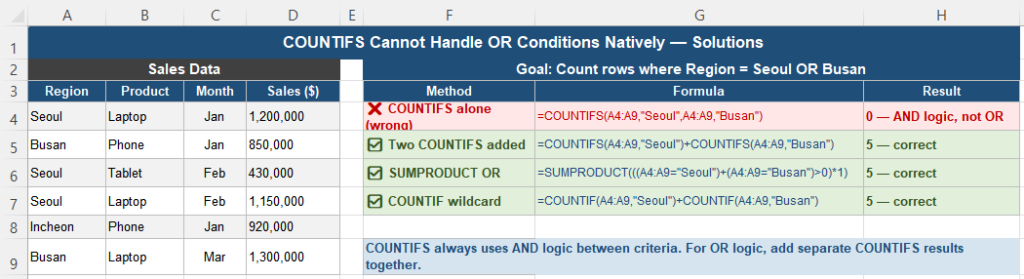
COUNTIFS always applies AND logic between its condition pairs — a row is counted only if every condition is true simultaneously. There is no built-in OR mode.
A common mistake is trying to use COUNTIFS for OR conditions:
-- This returns 0, not an OR count:
=COUNTIFS(A2:A100,"Seoul",A2:A100,"Busan")
No cell can be both “Seoul” and “Busan” at the same time, so the result is always zero.
The correct approaches for OR conditions:
Option A — Add separate COUNTIFS (simplest):
=COUNTIFS(A2:A100,"Seoul")+COUNTIFS(A2:A100,"Busan")Option B — SUMPRODUCT with addition (flexible):
=SUMPRODUCT(((A2:A100="Seoul")+(A2:A100="Busan")>0)*1)The addition operator creates OR logic — a row is counted if either condition is true. The >0 check prevents double-counting rows where both conditions are true.
For more complex OR condition scenarios with SUMIFS, see How to Calculate OR Conditions Correctly With SUMIFS.
When to Use a Pivot Table Instead
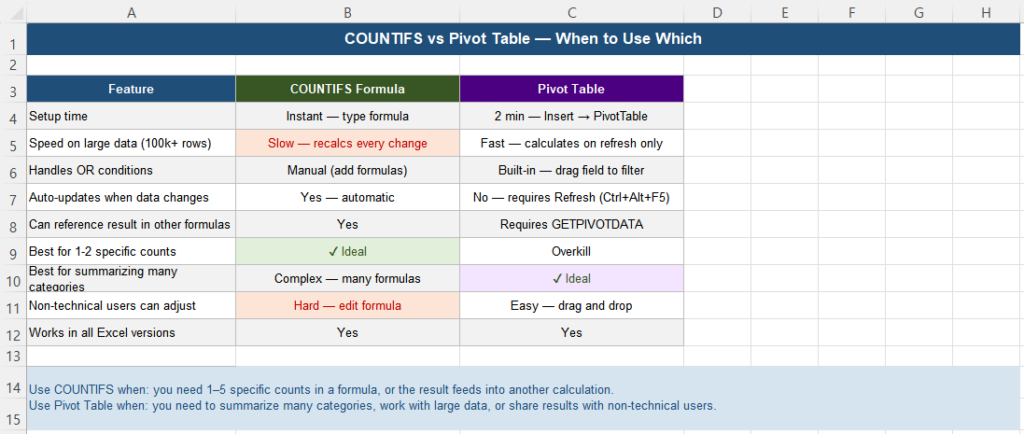
COUNTIFS is the right tool when you need one or a few specific counts that feed into other formulas. It is the wrong tool when you need to summarize many different category combinations across large data.
Pivot Tables calculate only when you click Refresh — they do not recalculate automatically on every cell change. For large datasets, this makes them dramatically faster than COUNTIFS formulas that recalculate continuously.
Use a Pivot Table when:
- You need counts across many category combinations (region × product × month)
- Your dataset has more than 50,000 rows
- The summary will be shared with people who need to adjust filters themselves
- You do not need the count result to feed into another formula
Use COUNTIFS when:
- You need a specific count that feeds into another formula or chart
- Your data has fewer than 10,000–20,000 rows
- The criteria are fixed and do not need user adjustment
- You need the count to update automatically without a manual Refresh step
Comparison: COUNTIFS vs SUMPRODUCT vs Pivot Table
| Feature | COUNTIFS | SUMPRODUCT | Pivot Table |
|---|---|---|---|
| AND logic between conditions | Yes — native | Yes — multiply arrays | Yes — filter fields |
| OR logic between conditions | Manual (add results) | Yes — add arrays | Yes — built-in filter |
| Performance on large data | Slow (full column refs) | Moderate | Fast (on-demand refresh) |
| Result feeds into other formulas | Yes — directly | Yes — directly | Requires GETPIVOTDATA |
| Auto-updates on data change | Yes | Yes | No — manual refresh |
| Works in all Excel versions | Yes (2007+) | Yes (all versions) | Yes (all versions) |
| Best use case | 1–5 specific counts | Complex conditions, OR logic | Large-data summaries |
Quick Checklist
- COUNTIFS slows down with full column references — use bounded ranges or Excel Table references instead
- Each condition pair adds one full scan of the data — reduce unnecessary conditions
- Volatile functions (TODAY, INDIRECT) in criteria trigger constant recalculation — isolate them in a separate cell
- COUNTIFS uses AND logic only — for OR conditions, add separate COUNTIFS results together
- SUMPRODUCT handles complex OR logic more cleanly than chained COUNTIFS additions
- For datasets over 50,000 rows with many category combinations, use a Pivot Table instead of COUNTIFS
- Excel Table references (Sales[Region]) automatically adjust to actual data size — the safest range reference
Frequently Asked Questions
Why does COUNTIFS get slower when I add more conditions?
Each condition pair in COUNTIFS requires Excel to scan the entire criteria range one additional time. Two conditions mean two full passes through the data. Five conditions mean five passes. On large datasets, this cumulative scanning cost becomes significant, especially when the workbook recalculates automatically on every cell change.
Why does =COUNTIFS(A:A,”Seoul”,A:A,”Busan”) return 0?
COUNTIFS uses AND logic between all conditions. This formula asks Excel to count rows where column A is simultaneously equal to “Seoul” AND “Busan” — which is impossible, so the result is always zero. For OR conditions, use two separate COUNTIFS and add them: =COUNTIFS(A:A,”Seoul”)+COUNTIFS(A:A,”Busan”).
What is the difference between COUNTIFS and SUMPRODUCT for counting?
Both can count rows that meet multiple conditions. COUNTIFS is simpler to write and read for AND conditions. SUMPRODUCT is more flexible — it handles OR logic natively using array addition, and can incorporate conditions that COUNTIFS cannot express. For straightforward AND conditions, COUNTIFS is preferred. For complex OR or mixed conditions, SUMPRODUCT is the better choice.
Should I use A:A or A2:A10000 in COUNTIFS?
Use bounded ranges (A2:A10000) or Excel Table references (TableName[ColumnName]) whenever possible. Full column references (A:A) force Excel to evaluate over one million cells even when your data occupies only a few hundred rows. The formula result is identical, but bounded references can be 10–100 times faster on large workbooks.
When should I use a Pivot Table instead of COUNTIFS?
Use a Pivot Table when you need to summarize many different category combinations across a large dataset, or when the workbook feels slow due to constant COUNTIFS recalculation. Pivot Tables calculate only when you click Refresh, which makes them much faster for large data. Use COUNTIFS when you need the result to update automatically or to feed into another formula directly.
I am now not sure the place you’re getting your information, but great topic. I must spend some time studying more or figuring out more. Thank you for fantastic information I was in search of this info for my mission.
Thank you for your kind words! I’m glad you found the topic useful. I hope the article helps you better understand how to optimize COUNTIFS performance in Excel. Best of luck with your project!