Nested IF formulas start simple. One condition, one result. Then a second condition gets added, then a third, and before long the formula spans the entire formula bar and nobody — including the person who wrote it — can explain what it does without reading it three times.
The problem is not that nested IF formulas are wrong. They are valid Excel syntax and they work. The problem is that they are fragile, hard to debug, and nearly impossible to maintain when business logic changes. And business logic always changes.
This post explains why nested IF formulas grow unmanageable, shows you the three patterns that replace them cleanly, and gives you a decision guide for choosing the right approach.
What Unmanageable Looks Like
Here is a nested IF formula that assigns a sales tier based on revenue:
=IF(B2>=90000,"Platinum",IF(B2>=70000,"Gold",IF(B2>=50000,"Silver",IF(B2>=30000,"Bronze","No Tier"))))Four conditions, four outcomes, one formula. It works. Now the business decides to add a “Diamond” tier above Platinum. You open the formula and face this:
=IF(B2>=120000,"Diamond",IF(B2>=90000,"Platinum",IF(B2>=70000,"Gold",IF(B2>=50000,"Silver",IF(B2>=30000,"Bronze","No Tier")))))One more level of nesting. One more pair of parentheses to balance. One more opportunity to misplace a comma or flip a condition. And this formula is still relatively small — real-world nested IFs frequently reach seven or eight levels.
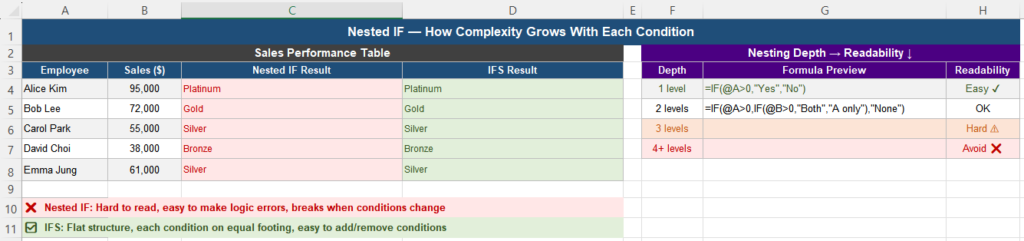
Four Reasons Nested IF Breaks Down
1. Logic order determines results — and it is easy to get wrong
Nested IF formulas evaluate conditions from left to right and stop at the first true result. This means the order of your conditions matters enormously.
Consider this formula designed to assign a commission rate:
=IF(B2>=5000,10%,IF(B2>=10000,15%,IF(B2>=20000,20%,5%)))The conditions are written in ascending order, which seems logical. But it is wrong. Any value over 5,000 triggers the first condition and returns 10%, so the 15% and 20% tiers are never reached. The formula looks correct, runs without errors, and produces wrong results silently.
Correct nested IFs must be written with the largest threshold first — a counterintuitive requirement that is easy to forget and impossible to catch without systematic testing.
2. Parentheses must balance perfectly
Each IF( must be closed with a matching ). With four levels of nesting, you need four closing parentheses at the end. Misplace one and the formula returns an error. Excel’s formula bar highlights mismatched parentheses in color, but in a long formula this is still easy to miss.
3. Modifying the formula is high-risk
Adding or removing a condition requires editing the middle of the formula string. Every edit risks disrupting the parenthesis balance, changing condition order, or accidentally modifying an adjacent value. There is no safe way to “insert a condition” the way you insert a row in a table.
4. They cannot be documented or explained in the cell
There is no way to add a comment to a formula. A nested IF with six conditions is a string of characters with no explanation of what business rule it encodes. Six months later, nobody — including the author — can confidently change it without testing every case.
Three Patterns That Replace Nested IF
Pattern 1 — IFS function (Excel 2019 and later)
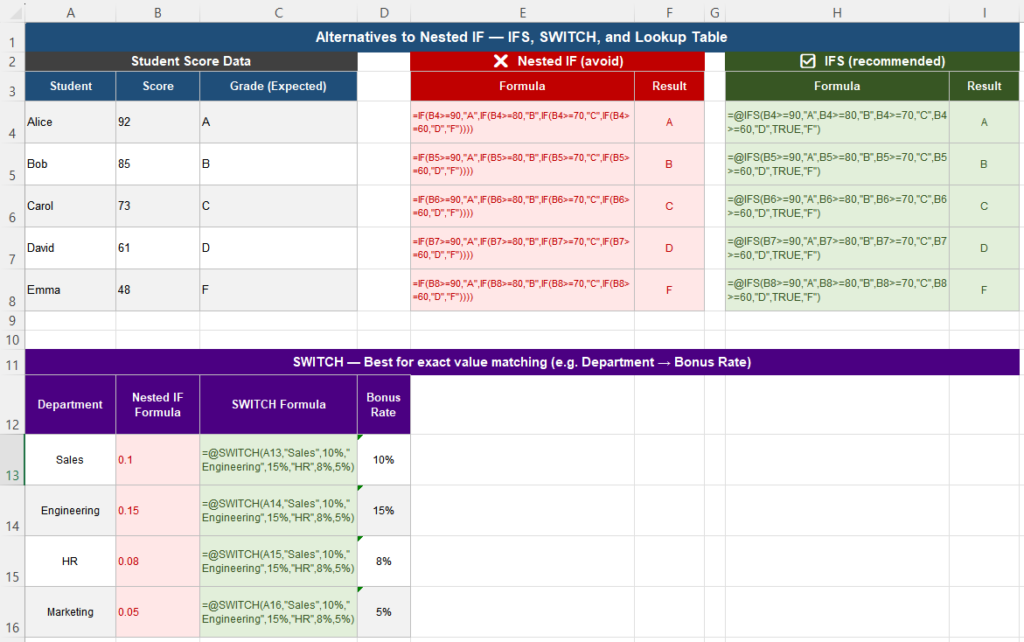
IFS evaluates multiple conditions in sequence and returns the value corresponding to the first true condition. Unlike nested IF, all conditions are at the same level — there is no nesting.
Nested IF (fragile):
=IF(B2>=90000,"Platinum",IF(B2>=70000,"Gold",IF(B2>=50000,"Silver","Bronze")))IFS (clean):
=IFS(B2>=90000,"Platinum",B2>=70000,"Gold",B2>=50000,"Silver",TRUE,"Bronze")The TRUE at the end acts as the default — it catches any value that does not match a previous condition. Each condition pair is easy to read, and adding a new tier means adding one pair anywhere in the list without touching the surrounding formula.
Pattern 2 — SWITCH function (Excel 2019 and later)
SWITCH is designed for exact-value matching — when you want to test a single cell against a list of specific values and return a corresponding result.
=SWITCH(C2,"Sales",10%,"Engineering",15%,"HR",8%,5%)This reads as: if C2 is “Sales” return 10%, if “Engineering” return 15%, if “HR” return 8%, otherwise return 5%. The last argument is the default.
SWITCH is not suitable for range conditions (greater than, less than). Use IFS for those. Use SWITCH when the test values are specific text or numbers.
Pattern 3 — Lookup table with VLOOKUP or XLOOKUP (all versions)
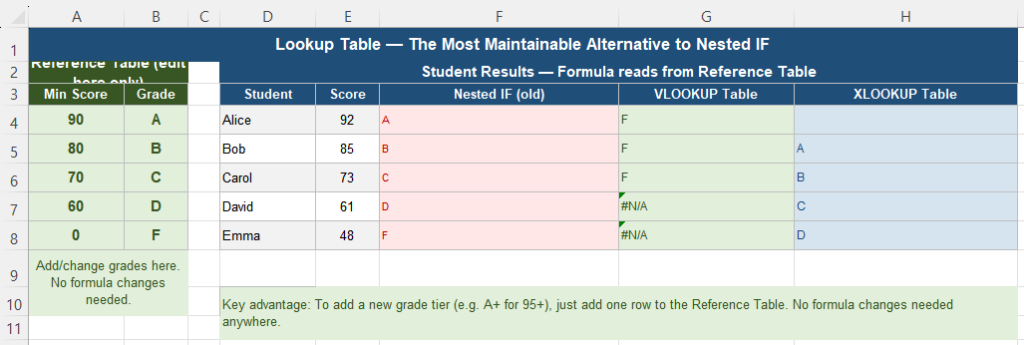
For range-based conditions, a lookup table is the most maintainable approach. Instead of encoding the logic in a formula, you store it in a separate table on the sheet and look it up.
Reference table (stored in cells A4:B8):
| Min Score | Grade |
|---|---|
| 90 | A |
| 80 | B |
| 70 | C |
| 60 | D |
| 0 | F |
Formula using the table:
=VLOOKUP(B2,$A$4:$B$8,2,TRUE)Or with XLOOKUP (Excel 365 / 2021):
=XLOOKUP(B2,$A$4:$A$8,$B$4:$B$8,,1)The TRUE in VLOOKUP and 1 in XLOOKUP activate approximate match — the right setting for range lookups like grade thresholds.
When the business adds an A+ tier at 95, you add one row to the reference table. The formula requires no changes at all.
Decision Guide — Which Pattern to Use
Use this guide to choose the right replacement:
- Testing ranges (greater than, less than, between)? → Use IFS or a lookup table
- Matching exact text or number values? → Use SWITCH
- Logic may change in the future or is shared with others? → Use a lookup table — the most maintainable option
- Need to support Excel 2016 or earlier? → Use a lookup table with VLOOKUP (IFS and SWITCH require Excel 2019+)
- Only two conditions? → A simple IF is fine — nesting becomes a problem at three or more levels
Comparison Table
| Feature | Nested IF | IFS | SWITCH | Lookup Table |
|---|---|---|---|---|
| Works with range conditions (>, <) | Yes | Yes | No | Yes |
| Works with exact value matching | Yes | Yes | Yes — best fit | Yes |
| Easy to add a new condition | No — risky edit | Yes — add one pair | Yes — add one pair | Yes — add one row |
| Risk of silent wrong result | High (order matters) | Low | Low | Low |
| Readable at a glance | No (3+ levels) | Yes | Yes | Yes (table is separate) |
| Non-technical users can update logic | No | Partial | Partial | Yes — just edit the table |
| Works in Excel 2016 and earlier | Yes | No | No | Yes (with VLOOKUP) |
How to Refactor an Existing Nested IF
Step 1 — Map out the logic first
Before touching the formula, write out every condition and its result as a plain list. This forces you to understand the logic independently of the formula syntax.
Step 2 — Count the conditions
If there are two or fewer, the nested IF may be fine as-is. Three or more: refactor.
Step 3 — Choose the replacement pattern
Use the decision guide above. For most range-based conditions in shared workbooks, a lookup table is the best choice.
Step 4 — Build the replacement in an empty column first
Write the new formula in a helper column and verify it produces identical results for all rows before replacing the original.
Step 5 — Test edge cases explicitly
Test the exact boundary values — the thresholds themselves, values just above and just below each threshold, and any empty or zero values. These are where logic errors most commonly hide.
Step 6 — Replace and delete the helper column
Once verified, paste-as-values over the original column or replace the formula directly. Delete the helper column.
Quick Checklist
- Nested IF formulas with three or more levels are fragile and hard to maintain
- Condition order matters — wrong order produces silent wrong results
- IFS replaces nested IF for range conditions (Excel 2019+)
- SWITCH replaces nested IF for exact value matching (Excel 2019+)
- A lookup table is the most maintainable approach for any version of Excel
- For a lookup table, use VLOOKUP with TRUE (approximate match) or XLOOKUP with match mode 1
- Always test boundary values — the thresholds themselves, not just typical cases
- Non-technical users can safely update a lookup table; they cannot safely update a nested IF
Frequently Asked Questions
How many levels of nested IF is too many?
Excel allows up to 64 levels of nesting, but most experienced users treat three as the practical limit for anything that will be maintained or shared. At three levels the formula is still readable with care. At four or more, the risk of logic errors and maintenance problems becomes significant enough to justify using IFS, SWITCH, or a lookup table instead.
What is the difference between IFS and nested IF?
Both evaluate multiple conditions and return a result based on the first true condition. The difference is structure: nested IF places each condition inside the previous one, creating multiple levels. IFS places all conditions at the same level in a flat list of condition-result pairs. IFS is easier to read, easier to modify, and less prone to parenthesis errors. IFS requires Excel 2019 or later.
When should I use SWITCH instead of IFS?
Use SWITCH when you are testing one cell against a list of exact values — for example, converting department names to bonus rates, or status codes to labels. Use IFS when your conditions involve comparisons like greater than or less than. SWITCH cannot handle range conditions; IFS can handle both range and exact-value conditions.
Why does my nested IF return the wrong tier for high values?
This is almost always a condition order problem. Nested IF stops at the first true condition. If your lowest threshold is listed first, any value above that threshold triggers the first condition and the formula never reaches the higher tiers. For range-based nested IFs, always list conditions from highest to lowest threshold. Or switch to IFS, which is less sensitive to this error.
Can I use a lookup table approach in Excel 2016?
Yes. The lookup table approach works in all Excel versions. Use VLOOKUP with the fourth argument set to TRUE for approximate match. Sort the reference table in ascending order by the threshold column — this is required for approximate match to work correctly. XLOOKUP with match mode 1 is the cleaner option but requires Excel 365 or 2021.