You enter a formula, press Enter, and… nothing changes. The cell just sits there displaying the old value. Or worse, every formula across your entire workbook is frozen—even after you update source data, nothing recalculates. If you’ve ever stared at a spreadsheet wondering why Excel formulas stop recalculating automatically, you’re not alone.
This is one of the most disorienting Excel problems because it’s invisible. There’s no error message, no red border, no broken cell indicator. The formula looks correct. The data looks correct. But the result is wrong—or rather, outdated.
In this guide, you’ll learn the four most common reasons Excel formulas stop updating, how to diagnose each one in under a minute, and the prevention habits that will stop this from happening again. We’ll also cover the critical keyboard shortcuts every Excel user should know for forcing recalculation.
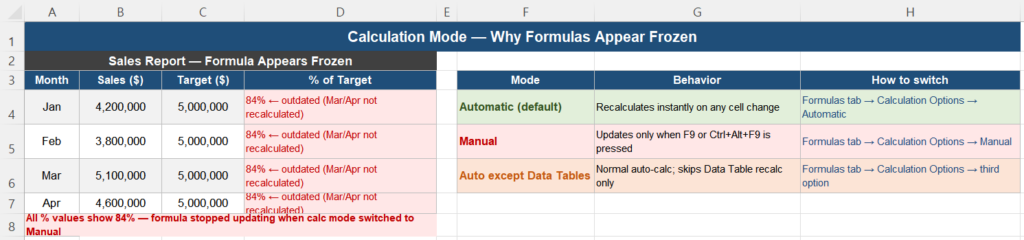
Why Excel Formulas Stop Updating
Excel normally recalculates formulas every time you change a cell value. This is called Automatic calculation mode, and it’s the default behavior most users expect. The moment something in your data changes, every dependent formula updates instantly.
But this behavior can be broken in four distinct ways:
- Manual calculation mode — Excel is explicitly told not to recalculate until you press a key
- Text-formatted cells — The cell containing the formula treats it as plain text, not a formula
- Show Formulas toggle — A display setting that makes all formulas visible as text
- VBA macro override — A macro changed the calculation setting and didn’t restore it
Each of these has a different root cause and a different fix. The good news: once you know what to look for, all four can be resolved in seconds. Let’s go through each one.
Cause 1: Calculation Mode Set to Manual
This is by far the most common reason Excel formulas don’t update automatically. When calculation mode is set to Manual, Excel essentially goes on strike—it will not recalculate any formula until you explicitly tell it to.
How It Happens
Manual mode is usually activated accidentally in one of three ways:
- A colleague or coworker saved the workbook while in Manual mode (Excel saves the calculation setting inside the file)
- A VBA macro set
Application.Calculation = xlManualand never restored it - The user pressed a keyboard shortcut that toggled the setting without realizing it
The sneaky part: Manual mode is a workbook-level setting, but it affects the entire Excel application. If you open a workbook that was saved in Manual mode, Excel switches to Manual for all open workbooks—including ones you already had open in Automatic mode.
How to Check and Fix It
Go to Formulas tab → Calculation Options. If it says “Manual,” that’s your culprit.
To fix it:
- Click Formulas in the ribbon
- Click Calculation Options (top right of the ribbon)
- Select Automatic
Immediately after switching back to Automatic, Excel will recalculate all open workbooks. If your data was correct and only the display was frozen, you’ll see all values update at once.
Alternatively, you can go to File → Options → Formulas and check the “Workbook Calculation” setting there.
Force Recalculate Without Changing Settings
If you need to see the updated values without changing the mode (for example, you’re in a large workbook where Automatic mode causes lag), press:
- F9 — Recalculates all open workbooks
- Shift+F9 — Recalculates only the active worksheet
- Ctrl+Alt+F9 — Forces full recalculation of all formulas, even if values haven’t changed
Cause 2: Cell Formatted as Text
This cause is subtle but extremely frustrating. When a cell is formatted as Text before you type a formula, Excel treats whatever you type as a literal string—not as a formula. The formula itself appears in the cell instead of a result.
How to Recognize It
The telltale sign: the cell shows =SUM(A1:A10) as visible text (left-aligned, no result), or shows the formula string with a leading apostrophe ('=SUM(A1:A10)) in the formula bar.
Check the cell format: select the cell and look at the format dropdown in the Home tab ribbon. If it says “Text,” that’s the problem.
How to Fix It
- Select the affected cell(s)
- Go to Home → Number Format and change “Text” to “General” (or whatever format is appropriate)
- Press F2 to enter edit mode, then press Enter
That last step is critical. Simply changing the format doesn’t trigger recalculation—you must re-enter the formula. The quickest way: F2 then Enter. For multiple cells, you can use Find & Replace to replace = with = (same value), which forces Excel to re-evaluate all formulas in the selection.
Batch Fix for Many Cells
If you have a column full of text-formatted formulas:
- Select the entire column
- Change the format to General
- Press Ctrl+H (Find & Replace)
- In “Find what”: type
= - In “Replace with”: type
= - Click Replace All
This trick forces Excel to re-parse every formula in the selection, converting them from text strings to live formulas.
Cause 3: Show Formulas Mode is On
Excel has a display mode called Show Formulas that makes every formula visible as text instead of showing its calculated result. This mode is useful for auditing a worksheet—but it looks exactly like broken formulas to someone who didn’t turn it on.
How to Recognize It
When Show Formulas mode is active:
- Every formula-containing cell shows the formula text (e.g.,
=A1+B1instead of the result) - Columns become noticeably wider (Excel auto-widens them to show full formula text)
- Numeric values in non-formula cells still appear normally
How to Fix It
The fastest fix is the keyboard shortcut: Ctrl+` (Ctrl + backtick). This toggles Show Formulas mode on and off. One press turns it off; your results reappear immediately.
You can also go to Formulas tab → Formula Auditing → Show Formulas and click to deactivate.
Note: Show Formulas is a worksheet-level setting, not workbook-level. If you have multiple sheets, you may need to toggle it off on each one individually.
Cause 4: VBA Macro Set xlManual
This is the most technical of the four causes, but it’s increasingly common as Excel files get passed between teams with embedded macros. A VBA macro might set Application.Calculation = xlManual at the start of a process (to speed up bulk data operations) and then fail to restore it to xlAutomatic before finishing.
How to Recognize It
Clues that a VBA macro may be responsible:
- The calculation problem appeared suddenly after running a macro
- The Formulas → Calculation Options still shows Manual even after you switch it to Automatic and close/reopen the file
- The workbook contains buttons or ActiveX controls that trigger macros
How to Fix It
Immediate fix: Switch back to Automatic via Formulas → Calculation Options → Automatic (as described in Cause 1).
Permanent fix: Open the VBA editor (Alt+F11), find the macro that sets Application.Calculation = xlManual, and add this line at the end:
Application.Calculation = xlAutomaticBetter practice: wrap the entire macro in a structure that guarantees restoration even if an error occurs:
Sub MyMacro()
    Application.Calculation = xlManual
    On Error GoTo Cleanup

    ' ... your macro code here ...

Cleanup:
    Application.Calculation = xlAutomatic
End Sub
This pattern ensures xlAutomatic is always restored, even if the macro crashes midway through execution.
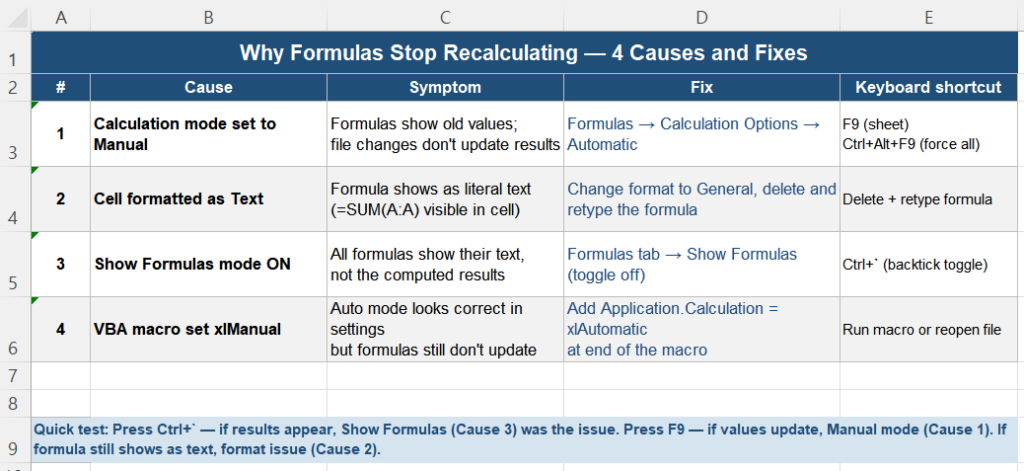
Step-by-Step Diagnosis Guide
When Excel formulas stop recalculating and you don’t know why, follow this four-step diagnosis sequence. It takes under two minutes and covers all four causes.
Step 1: Check for Show Formulas Mode
Press Ctrl+` once. If formulas suddenly show results, Show Formulas was the issue—and you’ve just fixed it. If nothing changes, proceed to Step 2.
Step 2: Check Calculation Mode
Go to Formulas → Calculation Options. If it says “Manual,” switch to “Automatic.” Watch whether formulas immediately update. If they do, you’re done. If not, or if it was already set to Automatic, go to Step 3.
Step 3: Check Cell Format
Click on a formula cell that isn’t updating. Look at the format dropdown in the Home tab. If it says “Text,” change it to “General” and press F2 then Enter to re-evaluate the formula. If the format was fine, go to Step 4.
Step 4: Check for VBA Override
Press Ctrl+F9 to force recalculate. Then press Alt+F11 to open the VBA editor and search for xlManual in any module. Fix as described in Cause 4 above.
In practice, Step 1 and Step 2 resolve over 90% of cases. Steps 3 and 4 are for the more obscure situations.
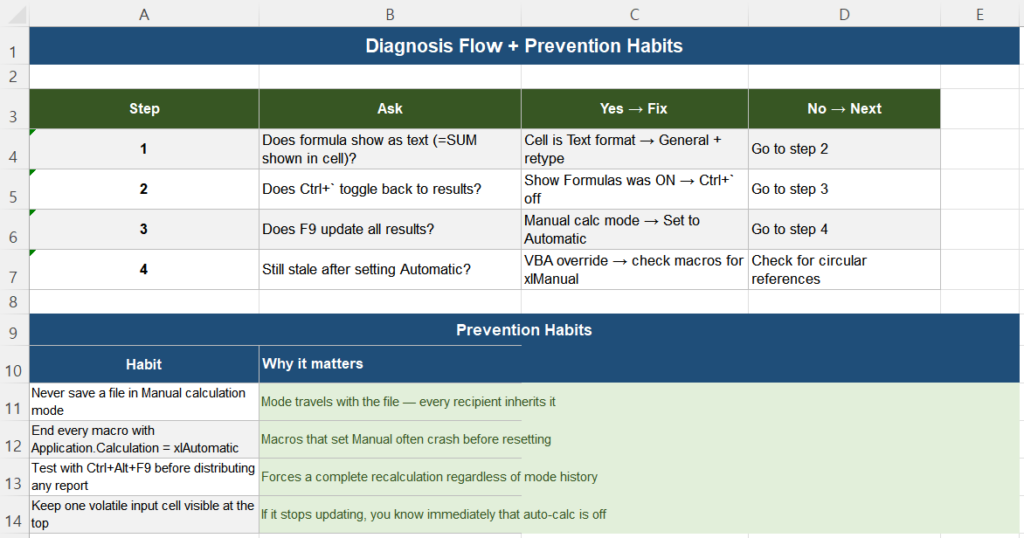
Essential Keyboard Shortcuts for Recalculation
| Shortcut | Action | Use When |
|---|---|---|
| F9 | Recalculate all open workbooks | In Manual mode, you want to update everything |
| Shift+F9 | Recalculate active worksheet only | In Manual mode, you only want the current sheet |
| Ctrl+Alt+F9 | Force full recalculation (ignores cache) | Results look wrong even in Automatic mode |
| Ctrl+` | Toggle Show Formulas on/off | All cells show formula text instead of values |
| F2 + Enter | Re-enter formula in current cell | Single text-formatted formula cell |
| Alt+F11 | Open VBA editor | Checking for xlManual in macros |
Prevention Habits
Once you’ve fixed the immediate problem, here are the habits that will prevent it from coming back:
Never Save in Manual Mode
Before saving any Excel file, always verify that Calculation Mode is set to Automatic. Make it a habit: before pressing Ctrl+S, glance at Formulas → Calculation Options. Saving in Manual mode is the #1 cause of “inherited” recalculation problems that get passed to others.
End All Macros with xlAutomatic
If you write or inherit VBA macros, make Application.Calculation = xlAutomatic the last line before every End Sub. Use the error-handling pattern shown in Cause 4 to guarantee restoration even on crashes.
Pre-format Cells Correctly
If you’re building a template where formula cells will be filled in later, pre-format those cells as General or Number—never Text. Check the format column by column before distributing a template.
Know the Ctrl+` Shortcut
Teach it to every Excel user on your team. Accidentally enabling Show Formulas is extremely common (especially on laptop keyboards where the backtick is near the Tab key), and knowing one shortcut to fix it saves significant confusion.
Use Ctrl+Alt+F9 After Complex Updates
When working with large lookup tables, volatile functions like NOW() or RAND(), or external data connections, use Ctrl+Alt+F9 after major updates to force a full recalculation from scratch. Sometimes Excel’s dependency tracking misses circular or indirect dependencies, and this resets it.
Related Articles
- Why VLOOKUP Is Slow and How to Fix It — If your recalculation lag is coming from VLOOKUP formulas, learn how to replace them with faster alternatives
- Why Pivot Table Doesn’t Refresh Automatically — Pivot tables have their own refresh logic separate from formula recalculation; here’s how to handle both
Quick Comparison: All Four Causes at a Glance
| Cause | Scope | Visual Clue | Quick Fix |
|---|---|---|---|
| Manual Calculation Mode | All open workbooks | Formulas show old values; Calc Options = Manual | Formulas → Calculation Options → Automatic |
| Text-Formatted Cell | Specific cells | Formula text visible; left-aligned; apostrophe in bar | Change to General; F2 + Enter |
| Show Formulas Mode | Active worksheet | All formula cells show formula text; columns wider | Ctrl+` to toggle off |
| VBA xlManual Override | All open workbooks | Manual mode returns after every macro run | Add xlAutomatic to end of macro |
Frequently Asked Questions
Why does my Excel formula show the formula text instead of a result?
There are two possible causes: (1) the cell is formatted as Text, which causes Excel to treat the formula as a string rather than a calculation—fix by changing the format to General and pressing F2 then Enter; or (2) Show Formulas mode is enabled, which displays all formulas as text across the entire worksheet—fix by pressing Ctrl+` to toggle it off.
How do I force Excel to recalculate all formulas?
Press Ctrl+Alt+F9 to force a complete recalculation of all formulas in all open workbooks, bypassing Excel’s dependency cache. For a lighter recalculation, F9 recalculates all open workbooks normally, and Shift+F9 recalculates only the active worksheet.
Why does my Excel file switch to Manual calculation mode every time I open it?
The workbook was saved while Excel was in Manual calculation mode—Excel stores the calculation setting inside the file. To fix it permanently: switch to Automatic (Formulas → Calculation Options → Automatic), then save the file again. If it keeps reverting, check whether the file contains a VBA macro that sets Application.Calculation = xlManual, and add Application.Calculation = xlAutomatic before the End Sub.
Will switching from Manual to Automatic mode affect other open workbooks?
Yes. Excel’s calculation mode is application-wide, not per-workbook. Switching one workbook to Automatic immediately affects all other open workbooks in the same Excel session. This is why opening a workbook saved in Manual mode can “infect” other workbooks you already had open.
My formulas still don’t update even after switching to Automatic mode. What else can I try?
Try pressing Ctrl+Alt+F9 to force a full recalculation from scratch—this bypasses any cached dependency trees. If that doesn’t work, check whether the non-updating cells are formatted as Text (look at the format dropdown in the Home tab). If a single cell seems stuck, press F2 then Enter to re-enter the formula. If all else fails, save and close the workbook, reopen it, and run Ctrl+Alt+F9 again.