You open a workbook inherited from a colleague—or downloaded from an internal template library—and buried in one of the formula columns you spot it: =LOOKUP(...). Not VLOOKUP. Not XLOOKUP. Just LOOKUP. You might wonder: is this a mistake? Is it outdated? Should you replace it?
The LOOKUP function is one of Excel’s oldest lookup functions, predating VLOOKUP by several Excel versions. And despite being functionally superseded by better alternatives, it continues to appear in workbooks across organizations large and small. This isn’t necessarily negligence—there are legitimate historical and technical reasons why it persists.
In this guide, you’ll learn exactly what the LOOKUP function does, how it differs from VLOOKUP and XLOOKUP, the five reasons it still appears in modern Excel files, its most dangerous flaw, and how to safely migrate away from it when needed.
What Is the LOOKUP Function?
The LOOKUP function performs a one-dimensional search through a range and returns a corresponding value from a result range. It has two syntax forms:
Vector form:
=LOOKUP(lookup_value, lookup_vector, result_vector)Array form (older, rarely used intentionally):
=LOOKUP(lookup_value, array)In its vector form, LOOKUP searches lookup_vector for lookup_value and returns the value at the same position in result_vector. For example:
=LOOKUP("P-003", A2:A10, B2:B10)This searches column A for “P-003” and returns the corresponding value from column B. Superficially, this looks similar to VLOOKUP or XLOOKUP. The critical difference is in how LOOKUP handles the search—and what happens when it fails.
LOOKUP vs VLOOKUP: Key Differences
While LOOKUP and VLOOKUP may seem interchangeable for basic scenarios, they have fundamental behavioral differences that matter enormously in practice.
Sort Requirement
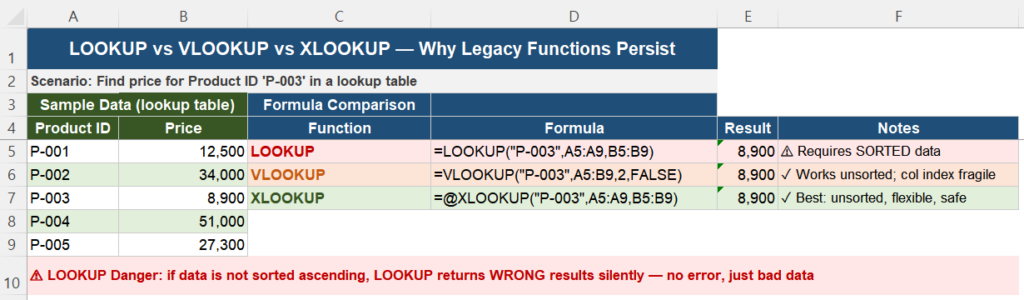
This is the most important difference. LOOKUP always assumes the lookup vector is sorted in ascending order. It uses a binary search algorithm (like searching a phone book by jumping to the middle). If the data is not sorted, LOOKUP may return completely wrong results—with no error, no warning, and no indication that anything went wrong.
VLOOKUP, when used with the fourth argument set to FALSE (exact match mode), performs a linear search and works correctly on unsorted data. XLOOKUP also works on unsorted data by default.
Error Handling
LOOKUP has no built-in error handling. When it can’t find a match, it doesn’t return #N/A—instead, it returns the value from the last row that is less than or equal to the lookup value (because of the binary search assumption). This produces wrong results that look correct.
VLOOKUP with exact match (FALSE) properly returns #N/A when no match is found. XLOOKUP lets you specify a custom “not found” value directly in the formula.
Column/Row Flexibility
VLOOKUP can only return values to the right of the lookup column. LOOKUP’s lookup vector and result vector are independent ranges, so it can return values from any position relative to the lookup column—to the left or right. This flexibility is one reason some users preferred it over VLOOKUP. XLOOKUP also handles this natively.
5 Reasons LOOKUP Still Appears in Workbooks
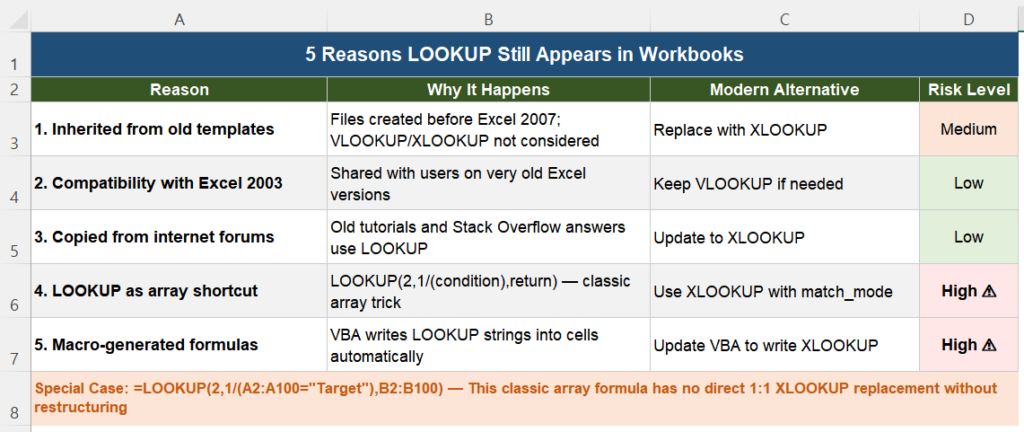
1. Inherited from Old Templates
Many organizations have Excel templates that were built before Excel 2007 or even earlier. At that time, VLOOKUP was considered modern and LOOKUP was already in wide use. When those templates are passed down through years of organizational history, their formulas come with them—untouched, because “if it ain’t broke, don’t fix it.” In files built in 2002 and still in use in 2026, LOOKUP formulas are common.
2. Backward Compatibility with Very Old Excel
XLOOKUP requires Excel 2019 or Microsoft 365. INDEX+MATCH requires at least Excel 2007. But LOOKUP works all the way back to Excel 95 and earlier. When a workbook needs to be opened by users who might still be running Excel 2003 (it happens), LOOKUP becomes the only option. The file compatibility constraint forces legacy formulas to stay.
3. Copied from Old Online Resources
Massive amounts of Excel help content on the internet—forum answers, blog posts, YouTube tutorials—were written between 2000 and 2015, when LOOKUP was still commonly taught. Someone searching for “how to look up a value in Excel” might find a 2008 Stack Overflow answer that uses LOOKUP and copy it directly into their workbook without questioning whether a better option exists.
4. The LOOKUP Array Trick
This is the most technically interesting reason. LOOKUP has a special capability that made it popular for array-style formulas before Excel had proper array formula support:
=LOOKUP(2, 1/(A2:A100="Target"), B2:B100)This pattern uses the fact that 1/(condition) returns 1 when the condition is TRUE and #DIV/0! errors when FALSE. LOOKUP ignores errors and finds the last value of 1 (the number 2 is larger than 1, so LOOKUP returns the last non-error position). This efficiently finds the last match in a range—something VLOOKUP cannot do at all, and something that requires more complex syntax in XLOOKUP (search_mode = -1).
Power users who built these formulas years ago know exactly what they’re doing, and the formula works reliably—even though it looks cryptic.
5. VBA-Generated Formulas
Sometimes it’s not a human who put the LOOKUP formula there—it’s a macro. VBA code that automatically generates formulas in cells might have been written to output LOOKUP syntax, and no one has updated the macro since. The resulting formulas get stamped into workbooks by automation, making them especially persistent and widespread across many files.
The Hidden Danger: Silent Wrong Results
The most serious problem with LOOKUP is not that it’s old—it’s that it can produce silently incorrect results with no error indicator.
Consider this scenario: you have a product price list that was originally sorted by Product ID. Someone adds new products at the bottom (unsorted). Your LOOKUP formula continues to work without errors, but it may now return the wrong price for some lookups—because its binary search is navigating the sorted structure it expects but no longer exists.
Here’s a concrete example of why this is so dangerous:
| Product ID | Price | LOOKUP Result | Correct Result |
|---|---|---|---|
| P-001 | 12,500 | 12,500 | 12,500 ✓ |
| P-003 | 8,900 | 8,900 | 8,900 ✓ |
| P-002 | 34,000 | ⚠ Returns 8,900 | 34,000 ✗ |
In the third row, P-002 comes after P-003 in the data (unsorted). LOOKUP’s binary search finds P-003 as the closest match at or below P-002 alphabetically, and returns 8,900—which is wrong. But there’s no #N/A, no red cell, no warning. The number looks perfectly normal.
This is why auditing inherited workbooks for LOOKUP usage is important—especially in financial models, inventory systems, or any place where wrong numbers have real consequences.
Special Case: LOOKUP as an Array Trick
As mentioned earlier, the pattern =LOOKUP(2, 1/(condition), result_range) is a legitimate power-user technique for finding the last matching value in a range. This is distinct from simple lookups and is deliberately exploiting LOOKUP’s behavior with binary search and error handling.
If you encounter this pattern in a workbook, don’t simply delete it without understanding what it does. To replace it with XLOOKUP:
' Old LOOKUP array trick (finds LAST match):
=LOOKUP(2, 1/(A2:A100="Target"), B2:B100)

' XLOOKUP equivalent:
=XLOOKUP("Target", A2:A100, B2:B100, "Not Found", 0, -1)
The -1 as the sixth argument (search_mode) tells XLOOKUP to search from last to first, effectively returning the last match. This is cleaner and more readable, though it requires Excel 2019 or Microsoft 365.
For pre-2019 Excel, the INDEX+MATCH equivalent is:
=INDEX(B2:B100, MATCH(1, (A2:A100="Target")*1, 0))Note: in older Excel versions this must be entered as an array formula with Ctrl+Shift+Enter.
Migration Guide: LOOKUP → XLOOKUP
If you decide to modernize a workbook by replacing LOOKUP formulas, here’s how to handle the most common scenarios:
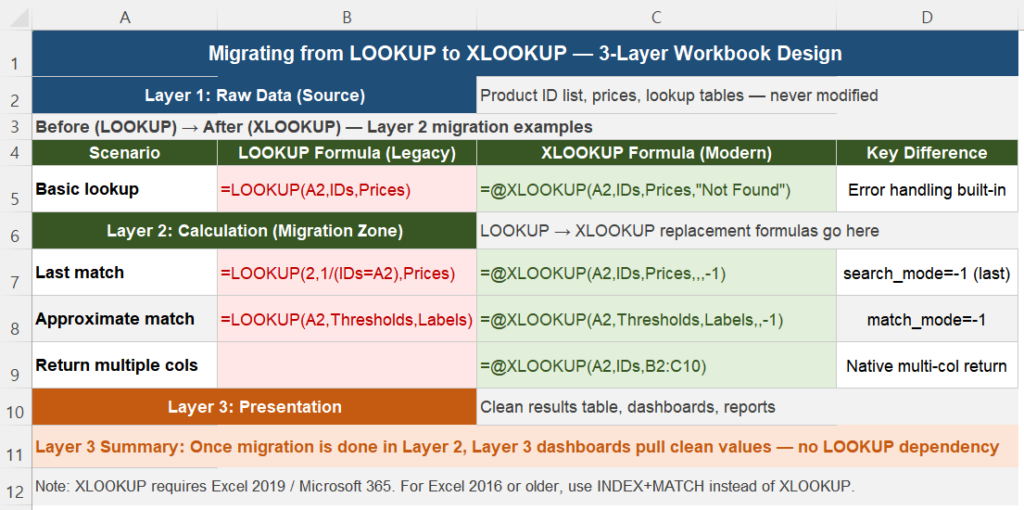
Basic Exact Lookup
| Before (LOOKUP) | After (XLOOKUP) |
|---|---|
=LOOKUP(A2, IDs, Prices) | =XLOOKUP(A2, IDs, Prices, "Not Found") |
Approximate Match (Ascending)
| Before (LOOKUP) | After (XLOOKUP) |
|---|---|
=LOOKUP(A2, Thresholds, Labels) | =XLOOKUP(A2, Thresholds, Labels, , -1) |
The -1 in the fifth argument (match_mode) means “exact match or next smaller item”—equivalent to LOOKUP’s default approximate behavior, but explicit.
Last Match
| Before (LOOKUP) | After (XLOOKUP) |
|---|---|
=LOOKUP(2, 1/(A2:A100="X"), B2:B100) | =XLOOKUP("X", A2:A100, B2:B100, , 0, -1) |
If XLOOKUP Is Not Available
For workbooks that must support Excel 2016 or earlier, use INDEX+MATCH as the migration target instead:
' Basic exact match:
=IFERROR(INDEX(Prices, MATCH(A2, IDs, 0)), "Not Found")

' Last match (array formula - Ctrl+Shift+Enter in old Excel):
=INDEX(B2:B100, MATCH(1, (A2:A100="X")*1, 0))
For more on VLOOKUP limitations that drive users toward these alternatives, see our guide: Why VLOOKUP Breaks When You Add or Remove Columns. And if you’re working with lookup functions that depend on clean, consistent data, our article on Why Excel VLOOKUP Returns #N/A Error covers the data quality issues that affect all lookup functions—including LOOKUP.
If your lookup performance is suffering in large workbooks, our article on Why VLOOKUP Is Slow and How to Fix It explains how to optimize formula-heavy workbooks.
When It’s OK to Keep LOOKUP
Not every LOOKUP formula needs to be replaced. Here are situations where keeping it is reasonable:
- The data is always sorted and will always remain sorted — If your lookup table is a static list (like tax brackets, postage rate tiers, or other threshold tables) that will never have unsorted insertions, LOOKUP’s approximate match behavior works correctly and reliably.
- Backward compatibility is a genuine requirement — If the file legitimately needs to run on Excel 2003, LOOKUP may be the only viable option.
- The LOOKUP array trick for last-match — If no one on your team uses Excel 2019+ and the workbook can’t use XLOOKUP, the
=LOOKUP(2,1/(condition),results)pattern remains the cleanest pre-XLOOKUP solution for finding last matches. - The formula works and the workbook is not business-critical — In low-stakes files where a wrong result would be caught quickly, the cost of migration may outweigh the benefit.
When you do choose to keep LOOKUP, add a comment to the cell (right-click → Insert Comment) documenting why it’s there and whether the data must remain sorted for it to work correctly.
Comparison Table: LOOKUP vs VLOOKUP vs XLOOKUP
| Feature | LOOKUP | VLOOKUP | XLOOKUP |
|---|---|---|---|
| Requires sorted data | ⚠ Yes (for exact match) | Only for approximate match | No |
| Returns #N/A on no match | No — returns wrong value | Yes (with FALSE) | Yes (or custom text) |
| Return column to left of lookup | Yes | No | Yes |
| Return multiple columns | No | No (one column) | Yes |
| Find last match | Via array trick | No | Yes (search_mode=-1) |
| Built-in not-found text | No | No (need IFERROR) | Yes (4th argument) |
| Excel version required | Excel 95+ | Excel 97+ | Excel 2019 / M365 |
| Recommended for new work | No | Only if pre-2019 | Yes |
Frequently Asked Questions
Is the LOOKUP function deprecated in Excel?
Microsoft has not officially deprecated the LOOKUP function, and it still works in all versions of Excel including Microsoft 365. However, Microsoft officially recommends using XLOOKUP or VLOOKUP instead for most use cases, as LOOKUP’s behavior on unsorted data can produce wrong results without any error indicator.
What is the difference between LOOKUP and VLOOKUP in Excel?
The key differences are: (1) LOOKUP always assumes data is sorted ascending and uses binary search—if data is unsorted, it returns wrong results silently. VLOOKUP with FALSE performs an exact match on unsorted data. (2) LOOKUP’s lookup range and result range are independent, so you can return values to the left of the lookup column. VLOOKUP can only return values to the right. (3) LOOKUP has no built-in error handling when no match is found—it returns an incorrect value instead of #N/A. VLOOKUP correctly returns #N/A.
What does =LOOKUP(2, 1/(condition), result) mean in Excel?
This is a classic array trick where 1/(condition) produces 1 for TRUE rows and #DIV/0! errors for FALSE rows. LOOKUP(2,...) searches for the value 2 in the array, but since 2 is larger than all valid values (1), it returns the last non-error value—effectively finding the last row where the condition is TRUE. It’s used to find the last matching value in a range, and was a popular technique before XLOOKUP introduced the search_mode=-1 parameter.
Should I replace all LOOKUP functions in my Excel workbooks?
Not necessarily. Replace LOOKUP when: the data is or might become unsorted (real risk of wrong results); you’re building new workbooks where XLOOKUP is available. Keep LOOKUP when: the lookup table is static and always sorted (like tax brackets or rate tiers); the file must support Excel 2016 or earlier; it’s the LOOKUP(2,1/(condition),results) array trick and no XLOOKUP is available. Always document why you kept it with a cell comment.
How do I find all LOOKUP functions in an Excel workbook?
Use Excel’s Find feature: press Ctrl+F, type =LOOKUP( in the search box, click “Options,” set “Look in” to “Formulas,” and click “Find All.” This lists every cell containing a LOOKUP formula in the entire workbook. You can then review each one to determine whether it’s safe (sorted data, static table) or at risk (unsorted data that could be modified).