Your Excel workbook used to open in two seconds. Now it takes forty-five seconds just to scroll down. Every time you type a number, the cursor freezes for three seconds while the spinning wheel appears. You’ve tried closing other apps, restarting Excel, even buying a faster computer—but the lag persists.
Slow Excel workbooks are almost never a hardware problem. They’re a formula architecture problem. The workbook is doing enormous amounts of unnecessary recalculation work, triggered by specific types of formulas and references that look innocent but carry massive performance costs.
In this guide, you’ll learn to identify the five biggest culprits behind slow Excel formulas, diagnose which ones are causing your specific problem, and replace them with faster alternatives—often without changing what the workbook does, just how efficiently it does it.
Why Excel Formulas Slow Down
Excel recalculates formulas in a dependency chain: when you change a value in cell A1, Excel checks which formulas depend on A1, then which formulas depend on those, and so on until the chain is complete. In a well-designed workbook, this chain is short and the recalculation finishes in milliseconds.
Workbooks slow down when:
- The dependency chain is extremely long (thousands of interconnected formulas)
- Some formulas force a full recalculation of every cell, regardless of what changed
- Formulas scan far more data than they need to
- Excel must reach outside the workbook to retrieve data
The key insight is that most slowdowns come from a small number of specific formula patterns. Fixing five or six formula types can turn a 30-second recalculation into a 1-second one without restructuring the entire workbook.
Culprit 1: Volatile Functions
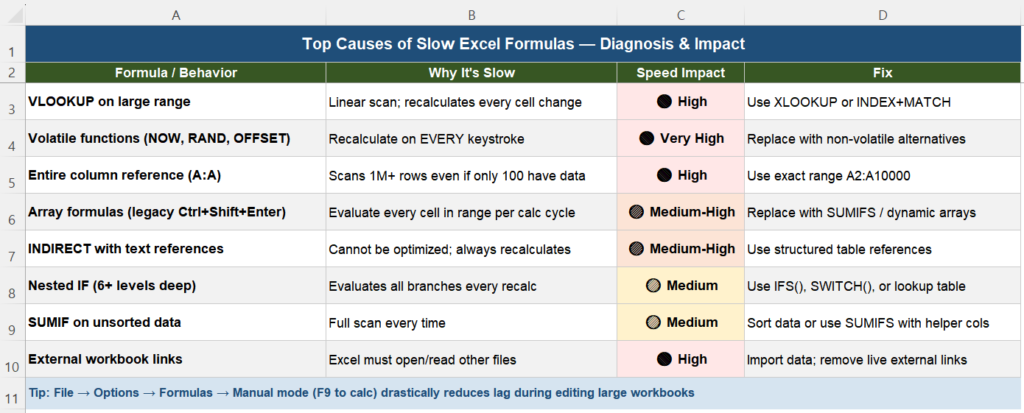
Volatile functions are the single biggest source of unexpected Excel slowdowns. A volatile function recalculates every time Excel recalculates—not just when its inputs change. This means every single keystroke anywhere in the workbook, every cell entry, every paste operation triggers these functions to recalculate.
Excel’s volatile functions include: NOW(), TODAY(), RAND(), RANDBETWEEN(), OFFSET(), INDIRECT(), INFO(), and CELL().
The Compounding Effect
If you have 50 formulas that reference a cell containing OFFSET(), all 50 recalculate on every keystroke—even if you’re typing in a completely unrelated part of the workbook. With 500 such formulas, the overhead becomes noticeable. With 5,000, the workbook becomes nearly unusable.
Common Volatile Patterns to Replace
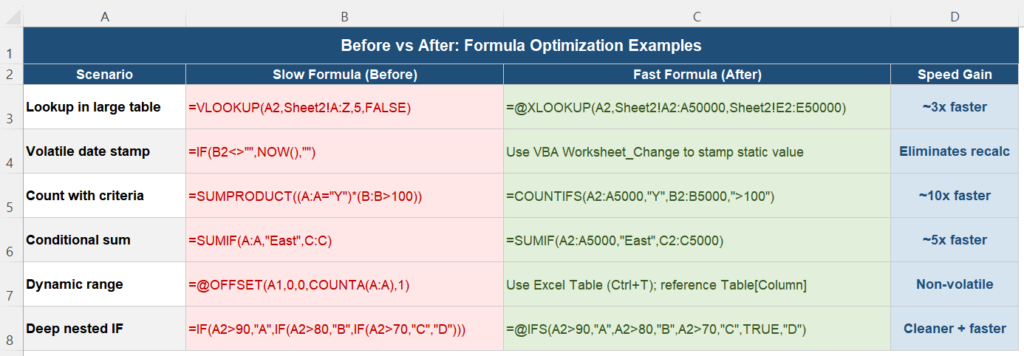
| Volatile Formula | Non-Volatile Alternative | Notes |
|---|---|---|
=OFFSET(A1,0,0,COUNTA(A:A),1) | Excel Table (Ctrl+T); use Table[Column] | Tables auto-expand; zero formula overhead |
=INDIRECT("Sheet1!A"&ROW()) | Direct structured reference | INDIRECT recalculates every time |
=IF(A2<>"",NOW(),"") | VBA Worksheet_Change to stamp value | Static timestamp; no recalc |
=TODAY() (used many times) | Set once in one cell; reference that cell | One volatile vs. hundreds |
How to Find All Volatile Functions
Press Ctrl+F → Options → Look in: Formulas. Search for OFFSET(, then INDIRECT(, then NOW(, TODAY(, RAND(. Note every occurrence—even one OFFSET in a heavily-referenced cell can cause cascading slowness.
Culprit 2: Entire Column References
When you write =SUMIF(A:A,"East",C:C), you’re asking Excel to scan all 1,048,576 rows of column A and column C—even if only 500 rows have data. This is 1 million unnecessary cell reads per formula calculation.
Entire column references (A:A, B:B) are extremely common because they seem “safe”—they’ll catch any new rows added to the bottom of the data. But in a workbook with dozens of such formulas, the cumulative overhead is severe.
The Fix: Exact Ranges
Replace A:A with a specific range like A2:A50000. Yes, it requires occasional maintenance as data grows, but the performance gain is often 5x–10x for SUMIF and COUNTIF operations.
A better long-term solution: convert your data to an Excel Table (Ctrl+T). Table references like SalesData[Region] automatically expand as rows are added, without scanning a million empty cells. They’re non-volatile and always exact.
| Before | After | Improvement |
|---|---|---|
=SUMIF(A:A,"East",C:C) | =SUMIF(A2:A5000,"East",C2:C5000) | ~5x faster |
=COUNTIF(B:B,">0") | =COUNTIF(SalesData[Amount],">0") | Non-volatile table ref |
=VLOOKUP(X,A:Z,5,FALSE) | =XLOOKUP(X,A2:A5000,E2:E5000) | ~3x faster + safer |
Culprit 3: VLOOKUP on Large Ranges
VLOOKUP with exact match (FALSE) performs a linear scan—it checks every row from top to bottom until it finds a match. In a table with 50,000 rows, a lookup near the bottom requires 50,000 comparisons. Multiply that by 200 VLOOKUP formulas in your workbook and you have 10 million comparisons per recalculation cycle.
XLOOKUP uses a more efficient internal algorithm and also allows binary search mode. INDEX+MATCH with MATCH in exact mode is comparable to VLOOKUP, but XLOOKUP with sorted data and binary search (search_mode=2) is dramatically faster.
For a full breakdown of VLOOKUP performance problems and replacement strategies, see our detailed guide: Why VLOOKUP Is Slow and How to Fix It.
Quick Replacement
' Slow: VLOOKUP on full column
=VLOOKUP(A2, Sheet2!A:Z, 5, FALSE)

' Fast: XLOOKUP on exact range
=XLOOKUP(A2, Sheet2!A2:A50000, Sheet2!E2:E50000, "Not Found")

' Fastest: XLOOKUP with binary search (data must be sorted)
=XLOOKUP(A2, Sheet2!A2:A50000, Sheet2!E2:E50000, "Not Found", 0, 2)
Culprit 4: Legacy Array Formulas
Before Excel 365 introduced dynamic arrays, the only way to perform multi-cell calculations was with legacy array formulas—entered with Ctrl+Shift+Enter and displayed with curly braces: {=SUM(IF(A2:A1000="East",B2:B1000))}.
These formulas evaluate every cell in their range on every recalculation, and they cannot be partially optimized by Excel’s dependency tracking. In a workbook with many CSE array formulas over large ranges, the performance impact is significant.
Modern Replacements
| Legacy Array Formula | Modern Replacement |
|---|---|
{=SUM(IF(A2:A1000="East",B2:B1000))} | =SUMIF(A2:A1000,"East",B2:B1000) |
{=COUNT(IF(A2:A1000>100,1))} | =COUNTIF(A2:A1000,">100") |
{=SUM((A2:A1000="East")*(B2:B1000>100)*C2:C1000)} | =SUMIFS(C2:C1000,A2:A1000,"East",B2:B1000,">100") |
=SUMPRODUCT((A:A="East")*(B:B)) | =SUMIF(A2:A5000,"East",B2:B5000) |
SUMIFS and COUNTIFS are natively optimized in Excel and significantly outperform their array formula equivalents on large datasets.
Culprit 5: External Workbook Links
When your workbook contains formulas that reference cells in another file (=[OtherFile.xlsx]Sheet1!A1), Excel must locate, open (or read the cached version of), and parse that external file during recalculation. If the external file has moved, is on a slow network share, or has itself been deleted, Excel may hang for 30 seconds or more trying to resolve the link.
How to Find External Links
Go to Data → Edit Links (or Data → Queries & Connections → Edit Links in newer versions). Any entries here represent live external file dependencies.
How to Fix It
- Break the link: In Edit Links, click “Break Link” to convert external references to static values. This is permanent—do it on a copy first.
- Import instead of link: Use Power Query to import data from the external file as a refreshable table, then reference the imported table with fast local formulas.
- Consolidate workbooks: If two workbooks always need to share data, merge them into one file with separate sheets.
Step-by-Step Diagnosis
Before optimizing anything, you need to know what’s actually causing the slowdown in your specific workbook. Follow these steps in order:
Step 1: Measure Baseline Recalculation Time
Press Ctrl+Alt+F9 (force full recalculation) and time how long it takes. This is your baseline. If it’s under 2 seconds, your problem is likely elsewhere (file size, graphics, conditional formatting). If it’s over 5 seconds, formula architecture is the issue.
Step 2: Switch to Manual Mode During Diagnosis
Go to Formulas → Calculation Options → Manual. This stops recalculation while you investigate, so you can navigate the workbook without waiting. (Don’t forget to switch back to Automatic when done—see our guide on Excel formulas not recalculating automatically for details.)
Step 3: Check for Volatile Functions
Use Ctrl+F → Formulas to search for: OFFSET(, INDIRECT(, NOW(, TODAY(, RAND(, RANDBETWEEN(. Count the hits. Even 10–20 volatile functions in heavily-referenced cells can cause significant lag.
Step 4: Check for Entire Column References
Search for :A), :B), :C) in formulas (the closing parenthesis after a full-column reference). Each hit is a potential performance problem.
Step 5: Check Formula Count and Complexity
Press Ctrl+End to find the last used cell. If it’s in row 500,000 on a sheet that only has 1,000 rows of data, you may have “ghost formatting” extending the used range—delete those empty formatted rows.
Step 6: Check External Links
Data → Edit Links. If the list is long or shows files on network paths (\\server\share\…), that’s a likely culprit for slow opens and recalculations.
The 3-Layer Design for Speed
The most effective long-term solution to slow Excel workbooks is a deliberate architectural pattern called the 3-Layer Design. Instead of mixing raw data, calculations, and presentation in the same cells, you separate them into distinct areas with clear data-flow rules.
Layer 1: Raw Data
Source data sheets contain only values—no formulas. Data is imported from external systems, pasted as values, or loaded via Power Query as a refreshable static table. These sheets never recalculate because they have nothing to recalculate.
Layer 2: Calculations
A dedicated sheet (or set of sheets) contains all formulas, but only efficient ones: XLOOKUP or INDEX+MATCH with exact ranges, SUMIFS/COUNTIFS instead of array formulas, no volatile functions, no entire-column references. This layer recalculates quickly because its formulas are optimized and reference only exact ranges in Layer 1.
Layer 3: Presentation
Dashboard sheets, charts, and Pivot Tables read from Layer 2 output cells. They contain no formulas of their own—only direct cell references to Layer 2 results. Pivot Tables refresh manually or on file open, completely outside the formula recalculation chain.
The result: Layer 1 never recalculates. Layer 2 recalculates fast. Layer 3 is decoupled from formula recalculation entirely. A workbook redesigned around this pattern typically sees 80–95% reduction in recalculation time.
If your Pivot Tables are also causing refresh delays, see our guide on Why Pivot Table Doesn’t Refresh Automatically for optimization strategies specific to that component.

Quick Wins Checklist
If you can’t restructure the entire workbook right now, apply these quick fixes in priority order. Each one can be done in under 10 minutes and delivers immediate improvement:
| Priority | Fix | Time to Apply | Expected Gain |
|---|---|---|---|
| 1 🔴 | Replace OFFSET() with Excel Table references | 15–30 min | Very high |
| 2 🔴 | Change A:A references to A2:A10000 | 5–10 min | High |
| 3 🔴 | Replace VLOOKUP with XLOOKUP on large tables | 20–40 min | High |
| 4 🟠 | Replace INDIRECT() with direct references | 30–60 min | Medium-High |
| 5 🟠 | Replace legacy CSE array formulas with SUMIFS/COUNTIFS | 30–60 min | Medium-High |
| 6 🟡 | Break or consolidate external workbook links | 1–2 hours | Medium (if present) |
| 7 🟡 | Delete ghost formatting (rows/cols below actual data) | 5 min | Low–Medium |
Related Articles
- Why VLOOKUP Is Slow and How to Fix It — Deep dive into VLOOKUP performance and replacement strategies with INDEX+MATCH and XLOOKUP
- Why Pivot Table Doesn’t Refresh Automatically — Pivot Table refresh performance and automation
- How to Fix Excel When Formulas Stop Recalculating Automatically — When formulas freeze entirely rather than just being slow
Frequently Asked Questions
Why is my Excel so slow when I type?
The most common cause is volatile functions (OFFSET, INDIRECT, NOW, TODAY, RAND) that recalculate on every keystroke. Even a single OFFSET function referenced by hundreds of downstream formulas can cause noticeable lag. Search for these functions using Ctrl+F → Look in: Formulas, and replace them with non-volatile alternatives like Excel Table references.
How do I make Excel formulas calculate faster?
The highest-impact changes are: (1) Replace entire column references (A:A) with exact ranges (A2:A5000); (2) Replace volatile functions like OFFSET and INDIRECT with Excel Table references; (3) Replace VLOOKUP on large ranges with XLOOKUP or INDEX+MATCH; (4) Replace legacy array formulas (Ctrl+Shift+Enter) with SUMIFS and COUNTIFS; (5) Break external workbook links and import data locally instead.
What are volatile functions in Excel and why do they slow it down?
Volatile functions (NOW, TODAY, RAND, RANDBETWEEN, OFFSET, INDIRECT, INFO, CELL) recalculate every time Excel recalculates anything—not just when their direct inputs change. This means every keystroke, every cell entry, and every paste triggers them to recalculate, along with all formulas that depend on them. In a workbook with many such formulas, the cumulative overhead causes noticeable lag after every action.
Why does Excel slow down when I use A:A (full column) references?
When you use A:A in a formula like =SUMIF(A:A,"East",C:C), Excel scans all 1,048,576 rows of that column on every recalculation—even if only 500 rows contain data. Replacing A:A with an exact range like A2:A5000 reduces the cells scanned by 99.95% and typically improves formula speed by 5x–10x. Using Excel Tables (Ctrl+T) with structured references like Table[Column] is even better, as they auto-expand without scanning empty rows.
How do I find what’s making my Excel workbook slow?
Follow this sequence: (1) Press Ctrl+Alt+F9 and time the recalculation—if it takes more than 5 seconds, formula architecture is the issue. (2) Switch to Manual mode (Formulas → Calculation Options → Manual) to stop lag during investigation. (3) Use Ctrl+F → Look in: Formulas to search for OFFSET(, INDIRECT(, NOW(, RAND(. (4) Search for :A), :B) patterns to find full-column references. (5) Check Data → Edit Links for external dependencies. (6) Press Ctrl+End—if the last used cell is far beyond your actual data, ghost formatting is inflating the workbook.