You need a single “Full Address” column that combines street, city, state, and zip from four separate columns. You write a formula using the & operator and it looks right — until you reach a row where State is blank, and the result comes back as “456 Oak Ave, Busan, , 67890″ with an extra comma and space sitting conspicuously in the middle.
CONCATENATE has the same problem. Neither function has any concept of “skip this delimiter if the adjacent value is empty.” TEXTJOIN does — and it handles blank cells, range references, and multi-line joins in ways that CONCATENATE simply cannot.
This post walks through why the older approaches break on real data, covers the TEXTJOIN patterns used most often in real reports, and gives you a sanity check for the edge cases that cause most joining mistakes.
The Double-Delimiter Problem
Consider a table with four address columns: Street, City, State, and Zip. The goal is a combined address string like 123 Main St, Seoul, Gyeonggi, 12345. The natural first attempt is:
=A2&", "&B2&", "&C2&", "&D2For complete rows this works. For any row where State (column C) is blank, it produces:
456 Oak Ave, Busan, , 67890That extra , , is not a typo — it is the delimiter that was placed on both sides of an empty cell, with nothing in between. CONCATENATE produces exactly the same result, because both functions assemble the string exactly as you specified, with no awareness of whether any piece is actually present.
Why CONCATENATE and & Cannot Handle Blanks
CONCATENATE and the & operator work the same way internally: they take exactly the arguments you supply, join them in order, and return the result. They have no mechanism for conditional inclusion — there is no parameter that says “include this value only if it is not empty, and skip the delimiter if it is.”
The only workaround available before TEXTJOIN was adding IF statements around each piece:
=A2&IF(C2="","",", "&C2)This works for one optional field. For two optional fields the formula doubles in complexity. For a range of cells with unknown blank positions, it becomes unwritable in a practical sense.
How TEXTJOIN Works
TEXTJOIN has three required arguments:
=TEXTJOIN(delimiter, ignore_empty, text1, [text2], ...)- delimiter — the separator to place between values, as a text string in quotes
- ignore_empty — TRUE to skip blank cells entirely (including their delimiter), FALSE to include blanks in the result
- text1 — the first value or range to join; accepts a range of cells directly, unlike CONCATENATE
The second argument is the entire solution to the double-delimiter problem. Setting it to TRUE means TEXTJOIN evaluates each cell before assembling the output — if a cell is blank, it is excluded from the result along with its delimiter. No blank cell ever contributes a stray comma or space to the output.
Scenario: Combining Address Parts
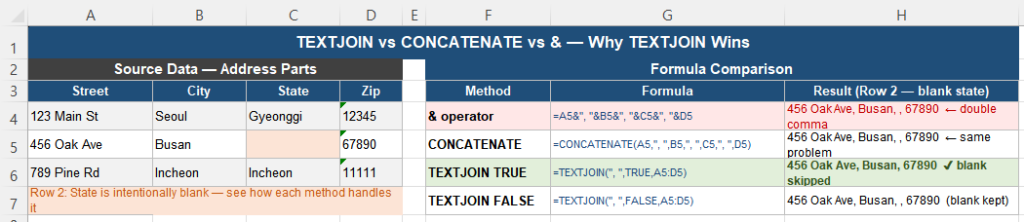
For the same four-column address scenario, TEXTJOIN produces:
=TEXTJOIN(", ", TRUE, A2:D2)For complete rows: 123 Main St, Seoul, Gyeonggi, 12345
For a row with blank State: 456 Oak Ave, Busan, 67890
No extra comma, no empty string between delimiters, no IF statement wrapping every piece. One formula, applied to the range directly, handles every combination of present and absent values automatically.
The range argument also makes TEXTJOIN significantly more concise for wider datasets. Joining six or eight columns with CONCATENATE requires six or eight separate arguments and five or seven delimiter strings. TEXTJOIN accepts the entire range as a single argument:
=TEXTJOIN(" | ", TRUE, A2:F2)Practical TEXTJOIN Patterns
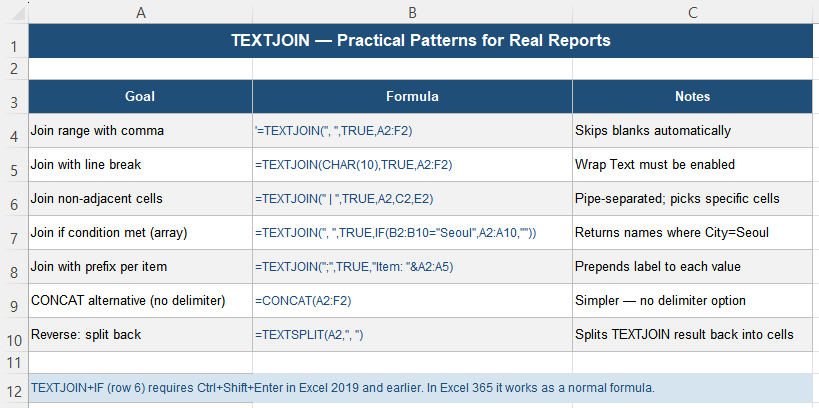
| Goal | Formula | Notes |
|---|---|---|
| Join a range with commas | =TEXTJOIN(", ", TRUE, A2:F2) | Skips blank cells automatically |
| Join with a line break | =TEXTJOIN(CHAR(10), TRUE, A2:F2) | Enable Wrap Text on the result cell for the line break to display |
| Join non-adjacent cells | =TEXTJOIN(" | ", TRUE, A2, C2, E2) | Picks specific cells; each one is a separate argument |
| Join only values that meet a condition | =TEXTJOIN(", ", TRUE, IF(B2:B10="Seoul", A2:A10, "")) | Returns only names from Seoul rows; requires Ctrl+Shift+Enter in Excel 2019 and earlier |
| Join with a prefix on each value | =TEXTJOIN("; ", TRUE, "Item: "&A2:A5) | Prepends a label to every joined value |
| No delimiter (pure concatenation) | =CONCAT(A2:F2) | Simpler than TEXTJOIN when no delimiter is needed |
| Reverse: split back into columns | =TEXTSPLIT(A2, ", ") | Splits a TEXTJOIN result back into individual cells (Excel 365 only) |
Sanity Check: Three Edge Cases to Test
A TEXTJOIN formula that works on typical rows can still produce unexpected output in edge cases. Before relying on it in a distributed report, test these three scenarios explicitly:
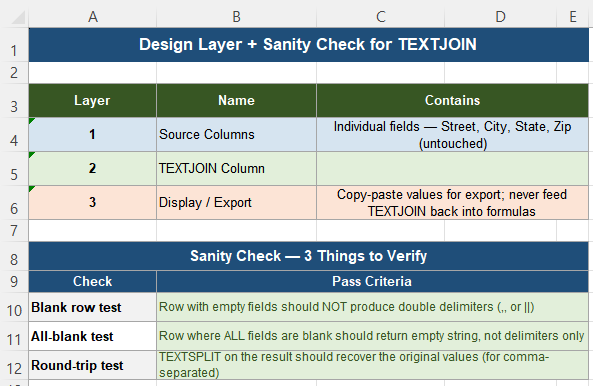
| Check | Pass criteria |
|---|---|
| Blank field test | A row with one or more empty fields should produce no double delimiters — commas or pipes should never appear adjacent to each other |
| All-blank test | A row where all source fields are blank should return an empty string, not a string of delimiters with nothing between them |
| Round-trip test | Applying TEXTSPLIT to the TEXTJOIN result should recover the original individual values (confirms the delimiter choice was unambiguous) |
If the all-blank case returns an empty string, TEXTJOIN is handling that case correctly on its own. If it returns a string of delimiters, the source data has an issue that should be addressed upstream rather than filtered out in the joining formula.
Design Considerations When Using TEXTJOIN
A few structural habits make TEXTJOIN easier to maintain over time.
Keep the source columns intact. Never replace the individual Street, City, State, and Zip columns with the combined result — always keep the source fields in separate columns and apply TEXTJOIN in an additional column. This preserves the ability to sort by individual field, apply SUMIFS or COUNTIFS on a specific column, and update any one field without touching the others.
Choose a delimiter that does not appear in the data. If any source field might contain a comma — a company name like “Smith, Jones & Co.” — a comma delimiter will make the result ambiguous and break any downstream TEXTSPLIT operation. Use a pipe (|), semicolon, or another character that cannot appear in the raw values.
Never feed TEXTJOIN output back into arithmetic or date calculations. TEXTJOIN always produces a text string — even if every source field contains numbers. Any formula that multiplies, adds, or applies EOMONTH to a TEXTJOIN result will fail. TEXTJOIN belongs in a presentation or export layer, not in a calculation chain.
Quick Checklist
- CONCATENATE and & produce double delimiters when a source cell is blank
- TEXTJOIN with ignore_empty=TRUE skips blank cells and their delimiters automatically
- TEXTJOIN accepts a full cell range as a single argument — CONCATENATE cannot
- Use CHAR(10) as the delimiter for line-break-separated output, and enable Wrap Text on the result cell
- Combine TEXTJOIN with IF for conditional joining (requires Ctrl+Shift+Enter in Excel 2019 and earlier)
- Keep source columns intact — never replace individual fields with the combined output
- Choose a delimiter that cannot appear in any source field to keep results unambiguous
- TEXTJOIN always produces text — never use its result in arithmetic or date calculations
Frequently Asked Questions
What is the difference between TEXTJOIN and CONCATENATE?
CONCATENATE joins specific values you list individually, with no way to skip blank ones or accept a range of cells. TEXTJOIN accepts a full cell range in a single argument, applies one delimiter specification to the entire join, and offers an ignore_empty parameter that automatically skips blank cells along with their delimiters. For any join involving more than three or four values or any possibility of blank fields, TEXTJOIN is cleaner and more reliable.
How do I join cells with a line break between them?
Use CHAR(10) as the delimiter: =TEXTJOIN(CHAR(10), TRUE, A2:D2). CHAR(10) is the line feed character. After entering the formula, right-click the result cell and enable Wrap Text — this is required for the line break to render visually. Without Wrap Text enabled, the cell displays all values on one line even though the formula is correct.
How do I use TEXTJOIN to join only values that meet a condition?
Combine TEXTJOIN with IF using an array: =TEXTJOIN(“, “, TRUE, IF(B2:B10=”Seoul”, A2:A10, “”)). This returns only the names in rows where the City column equals “Seoul.” In Excel 365, this works as a normal formula. In Excel 2019 and earlier, you must confirm it with Ctrl+Shift+Enter instead of just Enter, which converts it to an array formula.
Is TEXTJOIN available in Excel 2016?
TEXTJOIN was introduced in Excel 2019 and Excel for Microsoft 365. It is not available in Excel 2016 or earlier. For those versions, use CONCATENATE with IF statements to handle blank fields manually, or use the & operator with conditional logic. The formula is longer and harder to maintain, but produces the same result for the cases you can anticipate.
Why does TEXTJOIN produce a number instead of text for some cells?
TEXTJOIN always returns a text string — even when every source cell contains a number. If individual source cells contain numbers, TEXTJOIN converts them to text as part of joining, and the result will behave as text in all downstream formulas. If the result cell displays a number, it may be because a custom format has been applied to the result cell. Change the cell format to General or Text to see the actual text string.
Related Articles
- Why LEFT, RIGHT, and MID Break When Text Patterns Change
- Why Text and Numbers Don’t Separate Cleanly in Excel
- Why Excel Conditions Fail Because of Extra Spaces
Modified at 2026/9/12.