You clean your data, remove the duplicates, and move on. A week later, totals are off again, a lookup returns the wrong row, or the same ID shows up twice in a report. You run Remove Duplicates again. It comes back.
The issue is not that the cleanup failed — it worked exactly as designed. The problem is that Remove Duplicates fixes today’s data without remembering the rule that should apply to tomorrow’s data. Every new merge, append, or import can reintroduce the same duplicates, and nothing in the workbook flags it.
This post walks through three distinct methods for handling duplicates, explains when each one is the right tool, and shows you how to stop fixing the same problem every week.
Why Duplicates Keep Coming Back
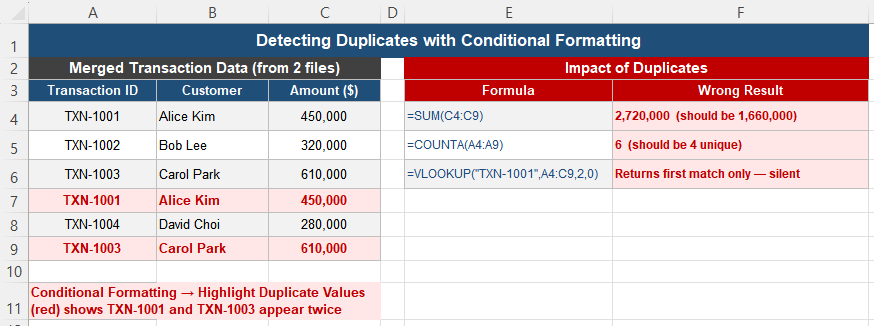
Consider a weekly process where transaction data is collected from multiple source files and merged into one workbook. Each transaction has a Transaction ID that should be unique. When two source files both contain the same transaction — because of an overlapping date range, a re-export, or a manual copy error — the same ID appears twice after merging.
You run Remove Duplicates, the extra rows disappear, and the report looks correct. Next week, the same merge process runs again, and the same class of duplicate reappears — not because the previous cleanup failed, but because nothing prevents the same condition from recurring.
Four Reasons This Keeps Happening
1. Duplicates are created by processes, not by typing
Most duplicate rows come from file merges, copy-paste operations between sheets, and recurring weekly or monthly data appends — not from someone manually typing the same row twice. Excel does exactly what the process tells it to do; if the process allows the same record to be added more than once, Excel will not stop it.
2. “Duplicate” means different things in different contexts
A duplicate could mean an entire row matching exactly, a single key column repeating with different supporting data, or values that look identical but differ by a hidden space or character. Without defining the rule explicitly, duplicate detection becomes inconsistent across different cleanups.
3. Manual removal deletes results, not logic
Remove Duplicates removes matching rows once. It does not store a rule anywhere that says “always keep Transaction ID unique.” When new data is added later, there is no mechanism that re-applies the same logic automatically.
4. Visual checks do not scale
Scanning a column by eye works for twenty rows. In a dataset with thousands of rows merged from multiple sources, duplicates hide quietly and typically surface only when a SUM total looks too high or a lookup returns an unexpected first match.
Method 1 — Conditional Formatting (Diagnosis)
Use this method when you want to see where duplicates exist without deleting anything yet.
- Select the column you want to check (for example, Transaction ID).
- Go to Home → Conditional Formatting → Highlight Cells Rules → Duplicate Values.
- Excel highlights every value that appears more than once.
This is a non-destructive diagnostic step. The data remains completely unchanged — you are only making duplicate locations visible so you can investigate the cause before deciding how to handle them.
Limitation: Conditional Formatting does not remove anything, and it requires you to look at the sheet manually each time. It is not a fix — it is a way to see the problem clearly.
Method 2 — Remove Duplicates (One-Time Cleanup)
Use this method when you are preparing a final, static output and a one-time cleanup is acceptable.
- Select the full data range.
- Go to Data → Remove Duplicates.
- Choose the column(s) that define a duplicate — for example, Transaction ID.
- Excel deletes all but the first occurrence of each duplicate.
This is fast, requires no formulas, and works well for one-off cleanups of static datasets. The critical limitation is that the rule is not saved anywhere. If new data is added afterward — through a fresh merge, import, or append — any new duplicates will not be caught automatically. Someone has to remember to repeat the exact same steps.
This method cleans today’s data. It does nothing for tomorrow’s.
Method 3 — UNIQUE (Ongoing Automatic Control)
Use this method when data is updated regularly and you need a duplicate-free list that stays current without manual intervention.
=UNIQUE(A:A)If Transaction IDs are in column A, this formula returns a list with duplicates removed automatically. It recalculates every time the source data changes — there is no separate step to remember or repeat.
Add sorting if needed:
=SORT(UNIQUE(A:A))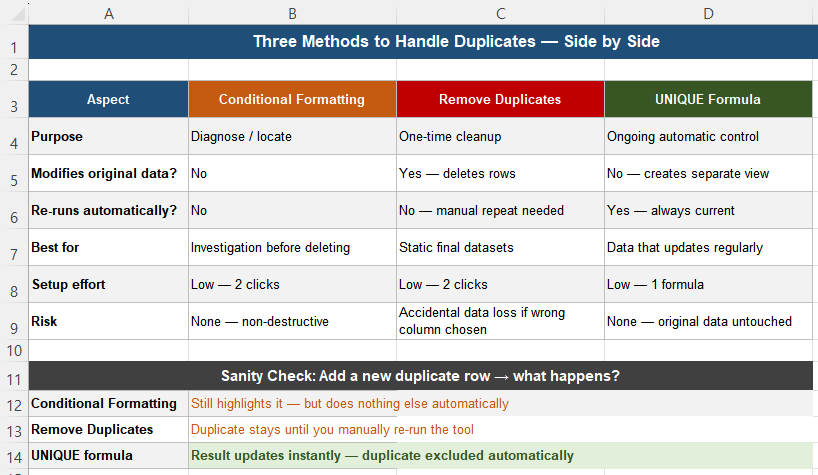
Critically, UNIQUE does not modify the source data — it creates a separate, clean view. This means the raw data, including any duplicates, remains available for audit, while every report built on the UNIQUE output stays automatically accurate.
Sanity check: add a new row with a duplicate Transaction ID to the raw data. Conditional Formatting will highlight it, but nothing else changes automatically. Remove Duplicates requires you to run the tool again manually. UNIQUE updates its result instantly, excluding the duplicate with no action required. This difference is exactly why UNIQUE scales and the other two methods do not, for ongoing work.
Comparison Table
| Aspect | Conditional Formatting | Remove Duplicates | UNIQUE Formula |
|---|---|---|---|
| Purpose | Diagnose / locate | One-time cleanup | Ongoing automatic control |
| Modifies original data? | No | Yes — deletes rows | No — creates a separate view |
| Re-runs automatically? | No | No — manual repeat needed | Yes — always current |
| Best for | Investigation before deleting | Static, final datasets | Data that updates regularly |
| Risk | None — non-destructive | Accidental data loss if wrong column is chosen | None — original data untouched |
Separate Raw Data From Cleaned Data
The most reliable structure for managing duplicates across an entire workbook follows three layers:

| Layer | Name | Duplicate handling |
|---|---|---|
| 1 | Raw Data | Never edited — duplicates may exist; this is acceptable |
| 2 | Cleaning Layer | =UNIQUE(…) applied once — the single source of truth |
| 3 | Reporting | References layer 2 only — always clean automatically |
If duplicate-removal logic is applied separately in multiple sheets, inconsistencies are guaranteed — one sheet may use a different key column or a different rule for what counts as a duplicate. Centralizing the logic once in layer 2 and referencing it everywhere else eliminates this entire category of error.
Quick Checklist
- Duplicates usually come from merges, imports, and appends — not manual typing
- Define the duplicate rule explicitly: which column, and whether hidden characters or formatting differences matter
- Use Conditional Formatting to locate duplicates without changing any data
- Use Remove Duplicates only for a true one-time, final cleanup — the rule is not remembered
- Use =UNIQUE(A:A) for any dataset that updates regularly — it recalculates automatically
- UNIQUE never modifies the source data; it creates a separate clean view
- Centralize duplicate-handling logic in one layer and reference it everywhere — never repeat the logic per sheet
- If hidden characters might be causing false non-duplicates, clean with TRIM/CLEAN before checking for duplicates
Frequently Asked Questions
Why do duplicates keep appearing even after I remove them?
Remove Duplicates performs a one-time deletion and does not store any rule for future data. If your workflow involves merging files, importing data, or appending rows on a recurring basis, each new cycle can reintroduce the same type of duplicate. The fix is to use a formula-based approach like =UNIQUE(A:A) for any dataset that updates regularly, since it recalculates automatically every time the source data changes, rather than requiring you to repeat a manual cleanup step.
What is the difference between Remove Duplicates and UNIQUE?
Remove Duplicates is a one-time tool that permanently deletes duplicate rows from your actual data. It must be run again manually whenever new duplicates appear. UNIQUE is a formula that returns a duplicate-free list as a separate, live view without modifying the original data. The UNIQUE result updates automatically whenever the source data changes, making it the better choice for any dataset that is updated on an ongoing basis.
Two values look identical but Excel doesn’t treat them as duplicates. Why?
This usually means one of the values contains a hidden character — a leading or trailing space, a line break, or a non-breaking space — that is not visible but makes the strings technically different. Apply =TRIM(CLEAN(A2)) to both values and compare again. If they now match, hidden characters were the cause. For more detail on detecting and removing these characters, see How to Fix Invisible Text Problems in Excel.
Should I use Conditional Formatting or Remove Duplicates first?
Use Conditional Formatting first whenever you are unsure about the data. It highlights duplicates without changing anything, letting you investigate why they exist before deciding how to handle them. Only use Remove Duplicates once you have confirmed which column defines uniqueness and you are certain that deleting the extra rows is the correct action. Skipping the diagnostic step risks deleting rows that were not actually duplicates under your intended definition.
Can duplicates cause wrong totals even if I don’t notice them?
Yes, and this is one of the most common ways duplicates cause damage. A SUM formula adds every row, including duplicates, so a repeated transaction inflates the total without any visible sign. COUNTA counts duplicate rows as separate entries, inflating counts. VLOOKUP returns only the first matching row, silently ignoring the fact that a duplicate exists at all. None of these produce an error — the numbers simply become wrong.