The Order Date column looks completely normal. Then EOMONTH returns an error, a date subtraction formula fails, and sorting by date produces an order that makes no chronological sense at all.
Reformatting the cell as a date often does nothing — and that itself is a clue. Excel only changes the display when you apply a format to a value it already recognizes as a date. If the value is actually text, formatting has nothing to convert, and the problem persists exactly as before.
This post walks through a single realistic monthly-report scenario where this happens, the diagnostic steps that confirm what Excel actually sees, the DATEVALUE-based fix, and how to handle the case where some rows convert cleanly while others do not.
Why Reformatting Doesn’t Fix It
A genuine Excel date is a serial number with a date format applied on top of it. Text that merely displays in a date-like pattern is still, internally, just a string of characters — nothing more. Applying a Date format to a cell changes how an existing value is displayed; it does not convert text into a number. This is precisely why changing the format so often appears to do nothing: there is no underlying numeric value for the format to act on.
Four Reasons This Happens
1. Excel separates value from appearance
Formatting and underlying data type are two independent properties of a cell. A cell can display in any date pattern you choose while still being, underneath, plain text — and Excel gives no visual warning when this mismatch exists.
2. Imported data bypasses Excel’s date parser
Dates arriving from CSV files, ERP and MES systems, web downloads, or copy-paste from emails and PDFs frequently arrive as text strings rather than recognized dates. Excel does not automatically reinterpret them unless the exact conditions for its date parser happen to be met during entry.
3. Regional date formats confuse the conversion
Text like 2024-03-01, 03/01/2024, and 01.03.2024 can all look like valid dates, but Excel interprets the order of day, month, and year according to system locale settings. When the text format does not match what Excel expects for the active locale, conversion fails silently rather than producing a clear error.
4. Hidden characters break conversion even when the text looks clean
A date string can contain a leading space, a trailing space, a non-breaking space, or an invisible control character carried over from the source system. None of these are visible on screen, but any of them is enough to make Excel treat the value as plain text rather than a convertible date pattern.
Scenario: A Monthly Report’s Order Date Column
Consider a monthly report where the Order Date column looks entirely correct at a glance. In practice: EOMONTH returns errors when applied to these dates, date-difference formulas fail to calculate, and sorting by date produces what looks like a random order rather than a chronological one. Manually retyping a single date “fixes” that one cell, but every other row in the column remains broken — a strong signal that the problem is structural, not a one-off typo.
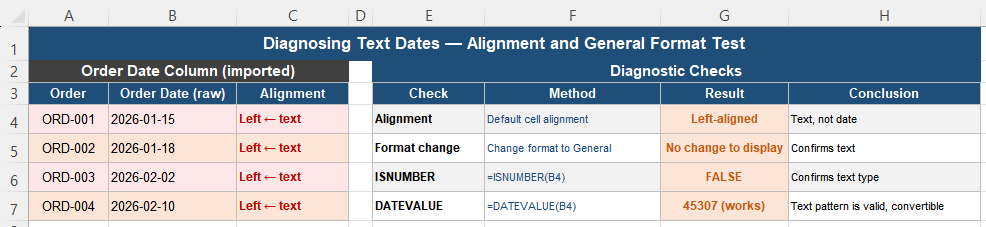
Step 1 — Confirm Real Date or Text
Before applying any fix, verify exactly what Excel sees, rather than guessing from appearance:
- Check the default alignment. Numbers and real dates align right by default; text aligns left. If a “date” column is left-aligned and you have not manually changed alignment, this is a strong first signal.
- Change the format to General. A real date will display as a serial number (such as 45672). Text will remain displayed exactly as typed, completely unchanged.
- Run
=ISNUMBER(A2). TRUE confirms a genuine date or number; FALSE confirms text.
This confirmation step prevents guessing and ensures the fix that follows is actually addressing the real problem.
Step 2 — Convert With DATEVALUE
In a helper column, attempt the direct conversion:
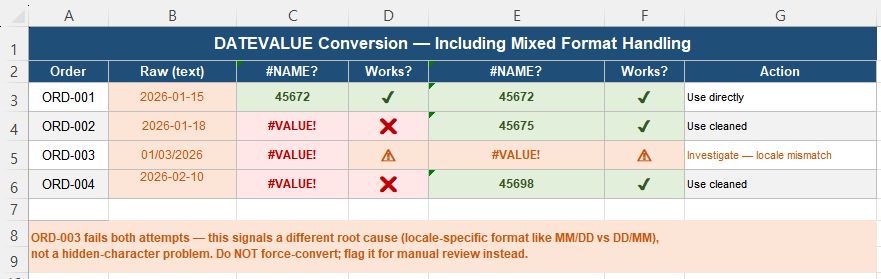
=DATEVALUE(A2)If Excel recognizes the text pattern, the result becomes a true serial number, which you can then format as a date. At that point, EOMONTH, DATEDIF, sorting, and every other date-aware operation will function correctly. If DATEVALUE returns an error instead, do not move on yet — that failure is itself useful diagnostic information, not a dead end.
Step 3 — Remove Hidden Characters First
When DATEVALUE errors out, hidden characters are the most likely cause. Clean the text before attempting conversion again:
=DATEVALUE(TRIM(CLEAN(A2)))TRIM removes extra spaces; CLEAN removes non-printable characters. Together, they eliminate the most common import artifacts before DATEVALUE attempts to interpret the remaining text. In real office data, this combination resolves the large majority of “mysterious” date conversion failures.
Step 4 — Handle Mixed or Inconsistent Formats Deliberately
If some rows convert successfully while others continue to fail even after cleaning, the underlying issue is inconsistent input formatting, not a flaw in the formula. At this point:
- Do not attempt to fix the remaining rows individually by retyping them — this does not scale and leaves no trace of what the original problem was.
- Keep all conversion logic centralized in one helper column, rather than scattering ad-hoc fixes across the sheet.
- Let the rows that still fail remain visibly unresolved, so they surface for proper investigation rather than being silently forced into a possibly incorrect date.
Forcing a conversion on every row regardless of whether it is actually correct risks introducing wrong dates that look identical to correct ones — a worse outcome than a visible, investigable failure.
Step 5 — Validate Before Replacing
Once the helper column sorts correctly, works properly with date formulas, and matches expected results on spot-checked rows, it is safe to copy the helper column and paste values back over the original if desired, clearly labeled as the validated “clean date” column. Never overwrite the original imported values before this validation step — if something is wrong with the conversion logic, you need the original text still available to diagnose it.
Final sanity check: after the fix, EOMONTH, DATEDIF, or simple date subtraction should all return real results rather than errors; sorting should follow true chronological order; and changing the format to General should reveal a serial number. If all three hold, Excel now genuinely recognizes the value as a date.
Better Practice — Treat Imported Dates as Untrusted
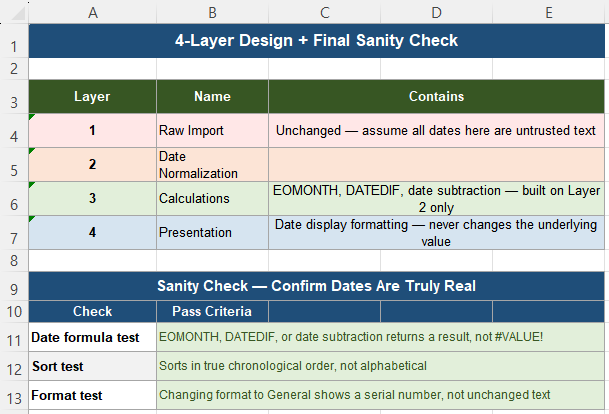
Fixing broken dates once is useful. Preventing the issue from recurring with every new import is better. A stable workbook structure typically follows four layers:
| Layer | Name | Contains |
|---|---|---|
| 1 | Raw Import | Unchanged — assume every date here is text until proven otherwise |
| 2 | Date Normalization | =DATEVALUE(TRIM(CLEAN(A2))) — conversion happens here, once |
| 3 | Calculations | EOMONTH, DATEDIF, date subtraction — built on Layer 2 only |
| 4 | Presentation | Date display formatting — applied last, never changes the value |
Two further habits reinforce this structure. First, avoid “format-only” fixes — changing a cell’s format does not convert its value, and relying on it hides the real problem until the next batch of data arrives with the same issue. Second, keep date logic numeric for as long as possible in the workflow; once a date passes through TEXT or a similar function, comparisons break, grouping fails, and downstream logic becomes fragile. Format dates for display only at the final presentation stage. For large datasets, convert dates once in a helper column and reference that column everywhere else — embedding DATEVALUE logic inside many separate formulas hurts both performance and auditability months later.
Quick Checklist
- A date-looking value that won’t calculate is very likely stored as text
- If reformatting the cell does nothing visible, that confirms the value was already text
- Check alignment and run =ISNUMBER(A2) to confirm before attempting any fix
- Try =DATEVALUE(A2) first; if it errors, hidden characters are the likely cause
- =DATEVALUE(TRIM(CLEAN(A2))) resolves most real-world imported date issues
- Rows that still fail after cleaning likely have a genuine format mismatch — investigate, don’t force-convert
- Validate the helper column against sorting and date formulas before replacing original data
- Centralize date conversion in one normalization layer rather than repeating the logic across many formulas
Frequently Asked Questions
Why doesn’t changing the cell format to Date fix my date column?
Changing a cell’s format only changes how an existing value is displayed — it does not convert text into a real date. If the column contains text strings that merely look like dates, applying a Date format has no underlying numeric value to act on, so the display does not change. Use =DATEVALUE(A2), optionally combined with TRIM and CLEAN, to genuinely convert the text into a date serial number.
Why does DATEVALUE return an error on some dates but not others?
This usually means the failing rows contain hidden characters — leading or trailing spaces, non-breaking spaces, or invisible control characters — that are not visible but prevent DATEVALUE from recognizing the date pattern. Try =DATEVALUE(TRIM(CLEAN(A2))) instead. If some rows still fail after this, the cause is likely a genuine format inconsistency, such as a different day/month order, rather than a hidden character problem.
Why does sorting my date column give a strange, non-chronological order?
If the dates are stored as text rather than real date serial numbers, Excel sorts them alphabetically, character by character, rather than chronologically. This can put dates in an order that looks essentially random relative to the actual calendar sequence. Converting the column to true dates with DATEVALUE resolves this, since real dates sort correctly by their underlying numeric value.
Some rows convert with DATEVALUE and others don’t — what should I do?
This indicates inconsistent input formatting rather than a problem with the formula itself. Do not fix the failing rows individually by retyping them, since this does not scale and removes the visible signal of what went wrong. Keep the conversion formula in one helper column, let the still-failing rows remain visibly unresolved, and investigate them specifically — they may use a different date format (such as day/month order) than the rest of the column.
Is it safe to overwrite the original date column with the converted values?
Only after validating the helper column thoroughly — confirming it sorts correctly, that date formulas like EOMONTH and DATEDIF work on it without error, and that spot-checked values match expectations. Never overwrite the original imported data before this validation step, since you may need the original text to diagnose any remaining conversion issues.