Your report looks clean. No #N/A, no #VALUE!, no red error flags anywhere. Then someone questions why revenue seems lower than expected, IFERROR gets temporarily removed to investigate, and dozens of hidden errors suddenly appear — errors that had been there the entire time, just invisible.
IFERROR is not dangerous on its own. The danger comes from where and how it gets applied. Wrapped around the wrong formula, it does not fix a problem — it deletes the only signal that a problem exists.
This post walks through exactly how this happens with a real revenue-reporting scenario, explains which errors are safe to suppress and which are not, and gives you a three-layer strategy for using IFERROR without losing visibility into real data problems.
How a Clean Report Hides Real Problems
IFERROR does not ask why an error occurred — it treats every cause identically. A missing lookup value, a broken cell reference, a wrong data type, and a divide-by-zero logic mistake all produce different error codes for a reason: they point to different problems. Once wrapped in IFERROR, that distinction disappears, and Excel no longer signals which problem exists or where it is located.
Excel’s error codes are designed to be loud on purpose. They force attention onto a data gap or a logic failure the moment it occurs. IFERROR converts that loud signal into a blank, a zero, or some other normal-looking value. The workbook keeps functioning — calculations still run, totals still appear — but correctness quietly degrades without any visible trace.
Four Reasons This Keeps Happening
1. IFERROR hides all errors without discrimination
A single IFERROR wrapper catches every error type that could occur in the wrapped formula. There is no way to say “catch this specific cause but let other causes through” without writing more targeted logic.
2. Errors move from visible to silent
The entire point of an error code is to interrupt and demand attention. IFERROR removes that interruption, and the workbook continues operating as if nothing unusual happened — when in fact something did.
3. Downstream logic becomes misleading
When an error becomes 0 or a blank, totals still calculate, averages still return numbers, and charts still render. But those results may now represent missing data rather than genuine zero values, and nothing in the output distinguishes between the two.
4. IFERROR spreads faster than logic gets reviewed
Once IFERROR appears in a workbook as a quick fix for an error, it tends to get copied into similar formulas elsewhere, nested inside other functions, and treated as a default response to any error rather than a deliberate choice for a specific, understood situation.
Full Scenario: The Missing Revenue
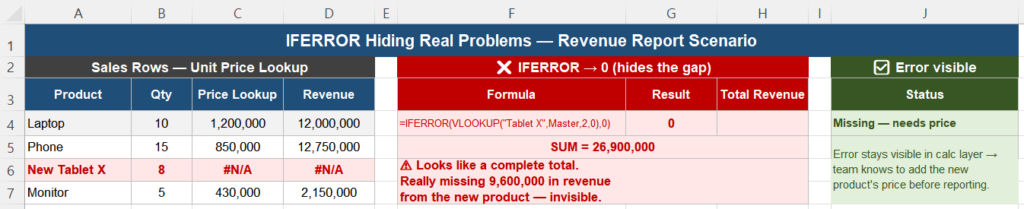
Consider a monthly sales report where each row pulls a Unit Price from a master price table using a lookup, then multiplies it by quantity to calculate revenue. A new product has been added to sales but not yet to the master price table, so its lookup returns #N/A.
To make the report look clean for distribution, IFERROR gets added:
=IFERROR(VLOOKUP("New Tablet X", MasterPriceList, 2, FALSE), 0)The error disappears. The revenue total now sums correctly without any visible problem. Management later questions why revenue seems lower than expected for the period — and the missing 9,600,000 in revenue from the new product is sitting silently as a zero, indistinguishable from any other row with no contribution.
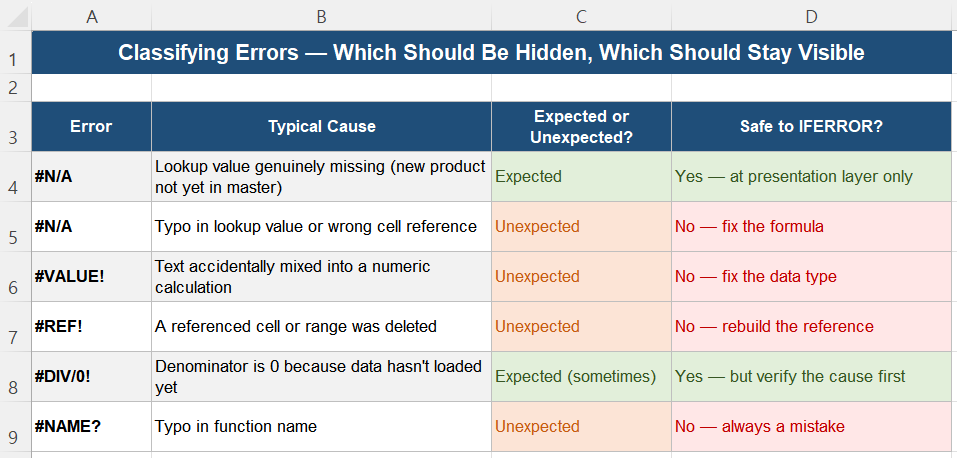
Classifying Errors: Expected vs Unexpected
Before deciding whether to suppress an error, classify it. Not every #N/A means the same thing, and the correct handling depends entirely on the cause.
| Error | Typical Cause | Expected or Unexpected? |
|---|---|---|
| #N/A | Lookup value genuinely missing (new product not yet in master) | Expected |
| #N/A | Typo in the lookup value or a reference to the wrong cell | Unexpected |
| #VALUE! | Text accidentally mixed into a numeric calculation | Unexpected |
| #REF! | A referenced cell or range was deleted | Unexpected |
| #DIV/0! | Denominator is zero because data has not loaded yet | Expected, sometimes — verify the cause first |
Only errors classified as genuinely expected — and verified to be so — are reasonable candidates for IFERROR. Every unexpected error should be investigated and fixed at its source, never suppressed.
Where IFERROR Belongs (Three-Layer Strategy)
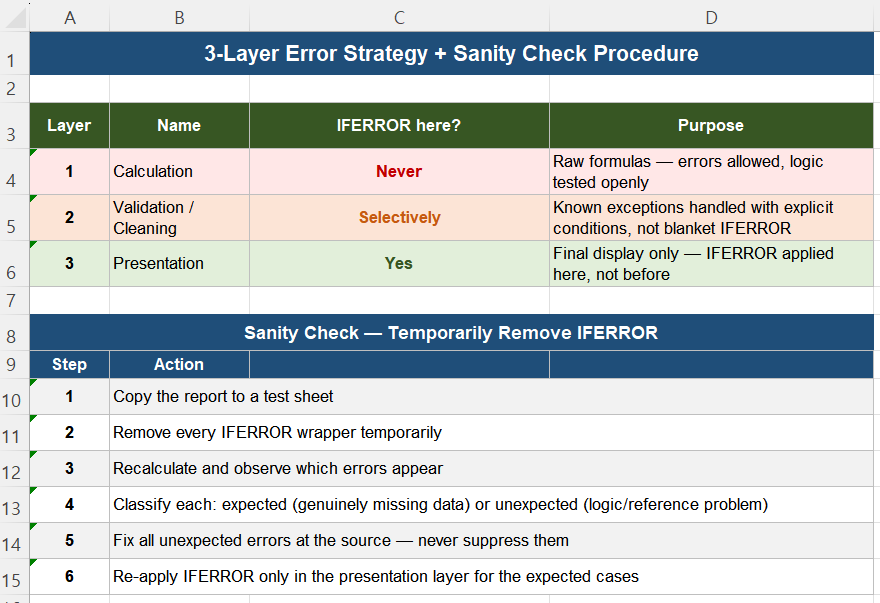
Stable Excel models separate calculation, validation, and presentation into distinct layers, and IFERROR belongs almost exclusively in the last one.
| Layer | Name | IFERROR here? | Purpose |
|---|---|---|---|
| 1 | Calculation | Never | Raw formulas — errors are allowed and visible while logic is being tested |
| 2 | Validation / Cleaning | Selectively | Known exceptions handled with explicit, named conditions — not blanket suppression |
| 3 | Presentation | Yes | Final display only — IFERROR applied here, after logic has been verified correct |
For the revenue scenario, this means the price lookup itself should be allowed to show #N/A during development and review. Only the final display version — the one a manager actually sees — should wrap the calculation:
=IFERROR(calculated_value, "")This keeps the underlying logic honest, keeps errors visible to whoever is building or auditing the report, and still produces a clean output for the final audience.
Sanity Check: Remove IFERROR Temporarily
As a periodic check on any report that uses IFERROR, run this procedure:
- Copy the report to a test sheet.
- Remove every IFERROR wrapper temporarily.
- Recalculate and observe exactly which errors appear and where.
- Classify each one: expected (genuinely missing data, verified) or unexpected (a logic or reference problem).
- Fix all unexpected errors at their source — never suppress them.
- Re-apply IFERROR only in the presentation layer, only for the cases confirmed to be expected.
A clean report should be clean because the underlying logic is correct, not because errors have been suppressed. This check distinguishes between the two.
Why Zero Is Not a Safe Default
Zero is a real number with real mathematical meaning. An error represents missing or invalid data — a fundamentally different situation. Using 0 as an IFERROR fallback is only appropriate when “no value” genuinely and verifiably means zero contribution to the calculation.
If the value actually represents “unknown” or “not yet available” — as in the missing product price scenario — a blank is the safer fallback, because it does not get silently absorbed into SUM totals the way a zero does. The choice between blank and zero should be a deliberate decision based on what the missing value actually represents, not a reflexive default.
Quick Checklist
- IFERROR does not distinguish between error causes — it treats all of them identically
- Suppressing an error converts a loud, visible signal into a silent, normal-looking value
- Classify each error as expected or unexpected before deciding whether to suppress it
- Apply IFERROR only in the presentation layer — never in the core calculation layer
- Use a blank fallback when missing means “unknown,” and zero only when missing genuinely means no contribution
- Periodically remove IFERROR temporarily to verify which errors exist underneath — a clean report should be clean because of correct logic, not suppression
- Centralize error handling in one column or layer rather than nesting IFERROR across many formulas
- If IFERROR is being copied into many formulas as a default fix, that is a signal to stop and investigate the underlying cause instead
Frequently Asked Questions
Is IFERROR bad practice in Excel?
IFERROR itself is not bad practice — it becomes a problem when applied without distinguishing why an error occurred. Used deliberately in a presentation layer, after the underlying logic has been verified correct, IFERROR is a legitimate and useful tool. Used reflexively as a default fix for any error anywhere in a workbook, it hides genuine problems and lets them persist undetected.
How do I know if an #N/A error is safe to suppress?
Investigate the specific cause before suppressing it. If the #N/A occurs because a lookup value is genuinely and verifiably missing from the source table — for example, a new product not yet added to a master price list — it may be safe to suppress in a final display layer. If the #N/A occurs because of a typo, a wrong cell reference, or a data type mismatch, it is not safe to suppress; it needs to be fixed at the source.
Should I use 0 or blank as the IFERROR fallback value?
Use 0 only when the missing value genuinely and mathematically represents zero contribution to a total. Use a blank (“”) when the missing value represents something unknown or not yet available, since a zero would be silently absorbed into SUM and AVERAGE calculations as if it were a real measured value, while a blank is more likely to be excluded or flagged appropriately depending on the formula.
Where in a workbook should I apply IFERROR?
Apply IFERROR only in the presentation layer — the final formulas that produce what a reader actually sees. Keep the core calculation layer free of IFERROR so that errors remain visible during development, testing, and auditing. This separation lets you catch and fix real problems while still producing clean output for the report’s audience.
How can I check whether IFERROR is hiding real problems in an existing report?
Copy the report to a test sheet, remove every IFERROR wrapper temporarily, and recalculate. Examine every error that appears and classify each one as expected (genuinely missing data, verified) or unexpected (a logic or reference problem). Fix the unexpected errors at their source. This periodic check confirms whether a report is clean because the logic is correct, or only appears clean because errors are being suppressed.